Color
Graphviz Color Schemes
Color is a key aspect of any visualization, and the Style Designer provides full support for all Graphviz color schemes.
Graphviz defines a color scheme as the context for interpreting color names.
If a color value has the form "xxx" or "/xxx", then the color xxx is evaluated according to the current color scheme. If no color scheme is set, the standard X11 naming is used.
For example, if colorscheme="bugn9", then color="7" is interpreted as /bugn9/7.
This may sound complicated, so let’s simplify:
- The Colors button on the Launchpad ribbon shows or hides the HELP – colors worksheet.
- This worksheet lists all supported Graphviz color schemes (267 in total).
- Each scheme contains between 3 and 656 colors.
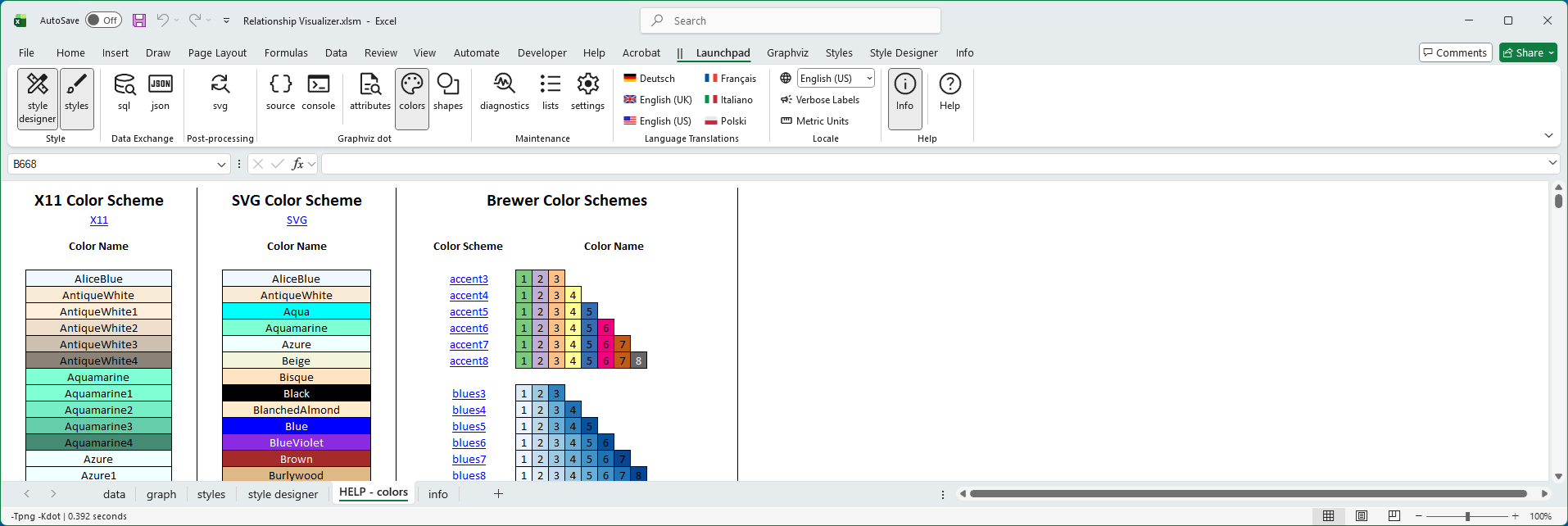
This worksheet is used behind the scenes to generate preview images for color choices.
Style Designer Color Schemes
Graphviz supports multiple color scheme families, which define how color names are interpreted. All Graphviz color schemes are supported in the Style Designer.
The Style Designer ribbon provides a large Color Scheme button and color drop‑down lists to help you select and apply these schemes.
Major Color Scheme Families
X11
- Graphviz’s default color scheme.
- Largest predefined set of colors (656 choices).
- Useful for broad, general‑purpose visualization with familiar names like HotPink1 or LightSkyBlue.
SVG
- Matches the standard color set defined by the SVG specification.
- Smaller, web‑friendly palette of named colors.
- Ideal for consistency with web graphics and cross‑platform rendering.
Brewer
- Based on Cynthia Brewer’s ColorBrewer palettes, designed for data visualization.
- Provides carefully balanced sequential, diverging, and qualitative color schemes.
- Useful for maps, charts, and diagrams where perceptual uniformity and accessibility are important.
Choosing a Color Scheme
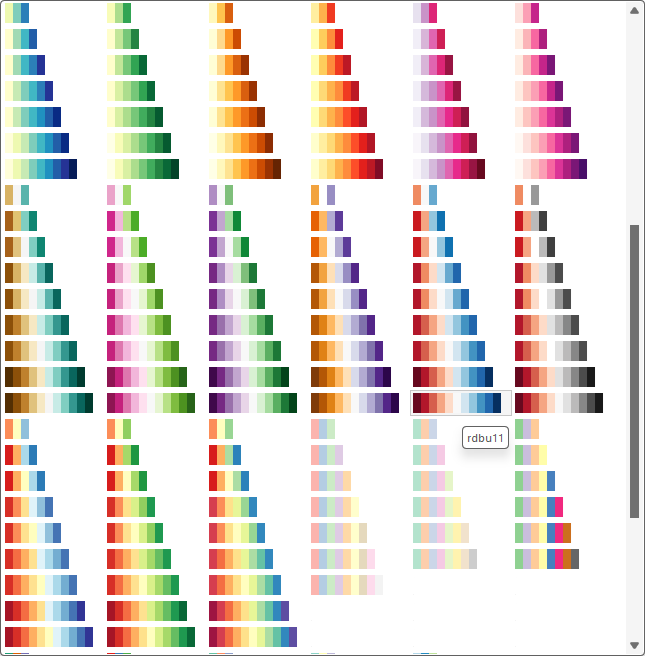
Clicking the Color Scheme button opens a gallery where you can choose a scheme:
 |
When you select a scheme, all color‑related drop‑down lists are refreshed to display the colors for that scheme.
For example, choosing greens3
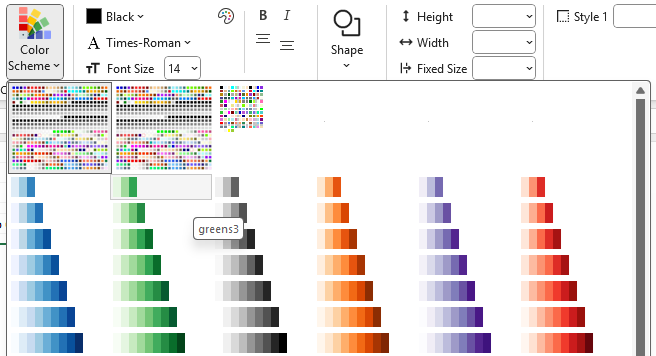
updates the lists to values 1, 2, and 3, displays color icons, and adds the attribute colorscheme=greens3 to the Format String.
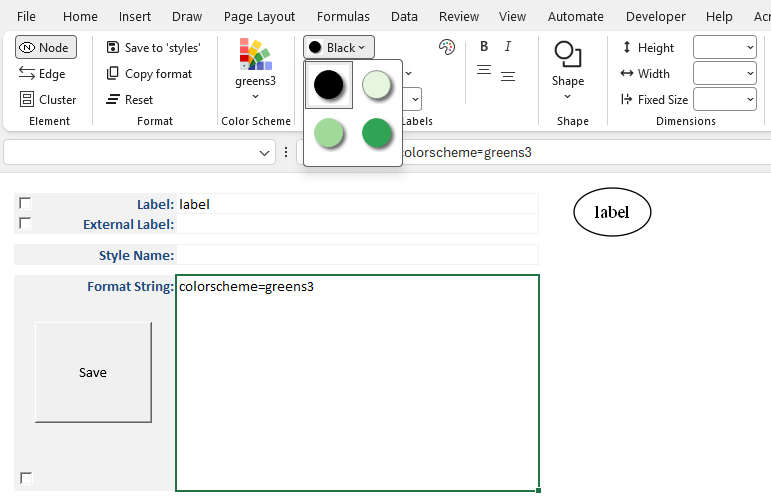
If you switch to another scheme, the lists refresh again.
For example, after selecting greens3,
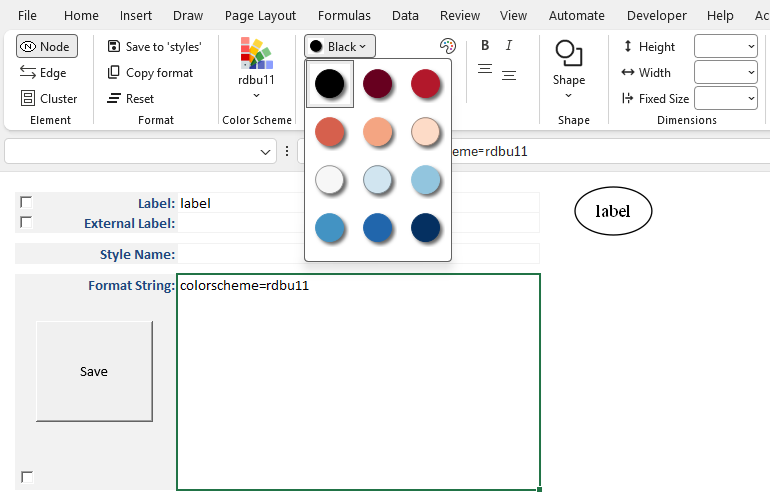
choosing rdbu11 updates the lists to values 1 through 11, displays color icons, and adds colorscheme=rdbu11 to the Format String.
Selecting a Pre-defined Color
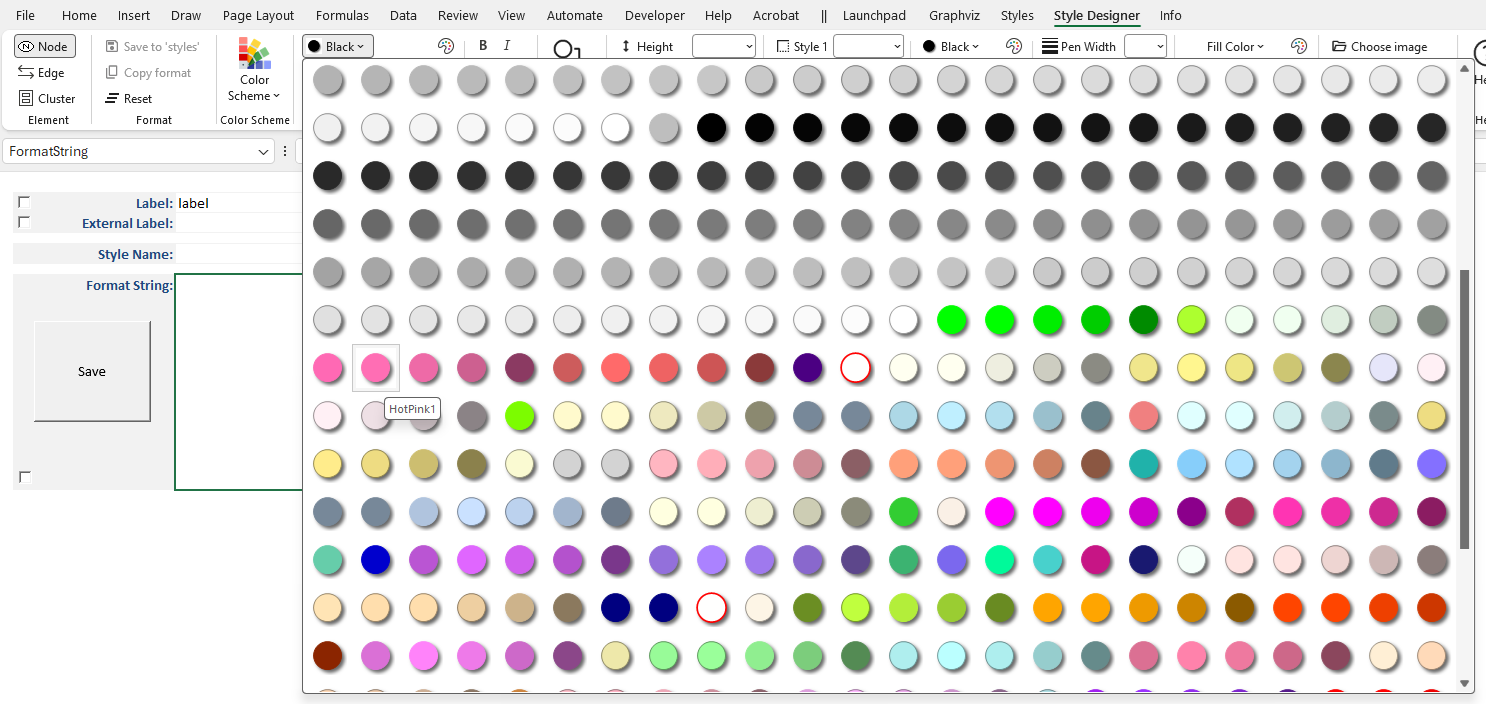
You choose colors by clicking on any of the color drop‑down arrows to open a gallery of available colors.
Hovering over a color shows its name, such as HotPink1 in the example below:
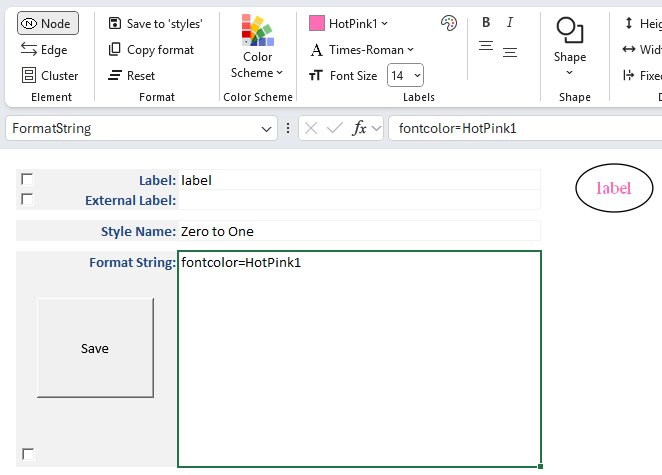
When you click on a color, the Style Designer ribbon updates to show both the color and its name.
The color name is added as an attribute in the Format String, and a preview image is generated to show how the color will appear when rendered by Graphviz.
In the example below, HotPink1 has been selected as the font color:
Selecting a Color Using RGB (Red Green Blue) Values
In addition to choosing from predefined color schemes, you can specify a custom color using the Color Dialog. To the right of each color choice dropdown is a small button with a color icon which appears as:
 |
|---|
This dialog provides a native interface for selecting colors on your operating system:
| Windows 11 Color Dialog | macOS Color Dialog |
|---|---|
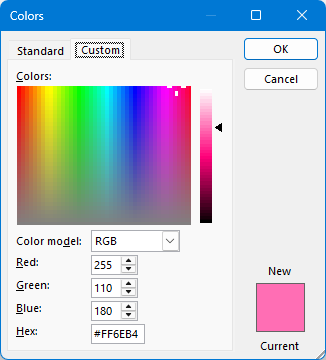 | 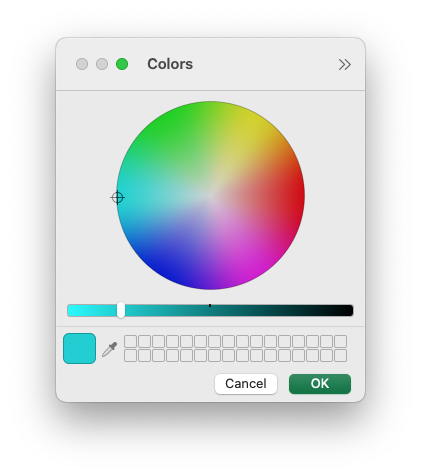 |
The Color Dialog is initialized to the currently chosen color.
If a named color from a color scheme is selected, it is automatically converted to RGB when the Color Dialog is displayed.
This allows you to first choose a color from a scheme, then refine it as needed using the picker.
For example, you might use the dialog to set a font color to a specific RGB value rather than relying on scheme‑based names.
When you select a color in the dialog:
- The chosen color is displayed as an icon in the Style Designer ribbon, and the RGB value of the color is shown as the color name (for example,
#FE0079). - The color name or RGB value is added as an attribute in the Format String.
- A preview image is generated to show how the color will appear when rendered by Graphviz.
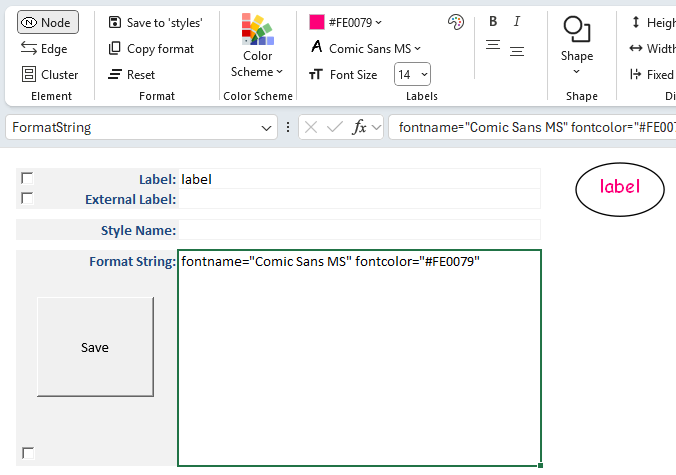
In the example below, both the Font Name and the Font Color have been specified, with the font color defined as an RGB value: