
Creating Graphs
Building a graph with the Relationship Visualizer spreadsheet is a simple, structured process. You learn the basic vocabulary, create a workbook, enter your data, apply style, and then publish or refine the output.
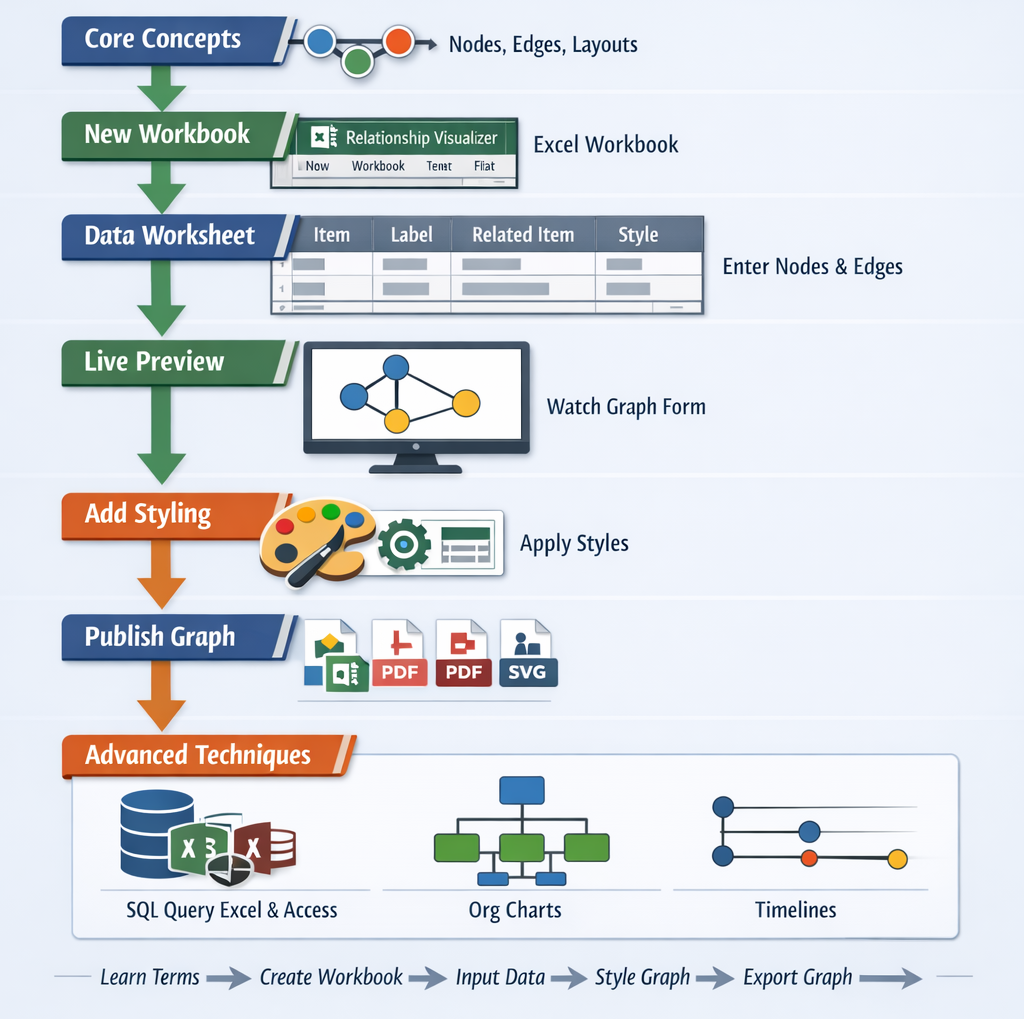
This page walks through the full workflow and links to focused topics that explain each step in detail.
Learn the Terminology
Before creating your first graph, it helps to understand the basic terms—nodes, edges, labels, styles, and views, as well as the various Graphviz graph layouts. These concepts shape how your data becomes a diagram.
Create a New Workbook
Every graph begins with a Relationship Visualizer.xlsm workbook. It provides the worksheets, formulas, and macro automation that turn your spreadsheet entries into Graphviz output.
Understand the data worksheet
The data worksheet is where you define the nodes and edges that make up your graph. Each row represents a relationship, and each column adds meaning—labels, types, styles, and more. This sheet is the foundation of every diagram you build.
Enter Nodes and Edges
Once the workbook and data sheet are ready, you can begin entering your node and edge data. As you type, the tool generates a live preview, making it easy to refine structure and relationships as you go.
Add styling
With the structure in place, you shape the visual presentation. Styles let you control color, layout, grouping, and emphasis—helping your graph tell a clearer story.
- Add style to graph elements
- Design reusable styles
- Save styles in a style gallery
- Create style-driven views
Publish your finished graph
When your graph looks the way you want, export it as an image, PDF, or SVG. Formats ideal for documentation, presentations, and sharing.
Enhance your SVG output
If you choose SVG, you can add animation, interactivity, or additional styling using SVG post‑processing tools.
Explore advanced capabilities
When you're ready to go further, explore advanced features like SQL‑driven graph generation, JSON exchange, DOT source inspection, CLI output capture, and expanded configuration options.