
Traversing Trees Recursively
A frequent question is: “Can you create tree‑traversal graphs using the Relationship Visualizer?”
The answer is YES!
Relationship Visualizer includes full support for recursive SQL queries, allowing it to automatically assemble hierarchical structures such as organization charts, dependency trees, and connected data paths. By repeatedly following parent–child relationships, the tool can expand even the simplest row‑based dataset into a complete, multi‑level hierarchy.
What is Recursion?
Recursion works by having a function repeatedly call itself, each time handling a smaller piece of the problem. The process continues until it reaches a base case that tells it when to stop.
Recursive SQL Queries
To use this feature effectively, the candidate dataset must include the key columns that define each relationship:
- A parent node
- A child node
These columns form the backbone of the hierarchy, allowing the recursive query engine to traverse upward or downward through the structure and generate a complete, layered graph.
A recursive query consists of two essential parts:
Anchor the Base Case
This defines the starting point for recursion—typically the top‑level parent in the hierarchy (for example, the CEO in an organization chart or the root node in a dependency tree). The anchor member returns the initial set of rows from which the hierarchy will begin.Define the Recursive Member
This portion of the query describes how to repeatedly join the growing result set back to the source table. Each iteration locates the next level of child nodes, allowing the hierarchy to expand downward (or upward) until no additional relationships remain.
SQL Extensions
Four new keywords unique to Relationship Visualizer have been defined to enable recursive queries:
TREE QUERY- Passed as a literal string, the presence ofTREE QUERYin the SQL result set tells the SQL engine to execute the associated SQL recursively.The SQL must contain the symbolic value
''{WHERE VALUE}''which will be replaced as each node is traversed with the value of the current node.Note that since
TREE QUERYis passed as a literal string, any strings in the SQL which would normally be specified with'delimiters must be escaped as''.WHERE VALUEprovides the value which anchors the base case. For example, in an organization chart it could be the ID of the CEO. For a subway line, it could be the starting subway station.WHERE COLUMN- Specifies the name of the column which defines the recursive member. It is the name of the column containing the value which should be searched next. For example, in an organization chart it could be column name of the column containing the ID of the employee's manager.MAX DEPTH- Specifies an optional integer value which specifies the maximum number of branches preceding, or following the node specified byWHERE VALUE. For example,3 AS [MAX DEPTH]says to constrain the search to 3 edge ranks which follow a node (Use Case 3), or 3 edge ranks which precede a node (Use Case 4), depending upon the direction of the search.
Scenario
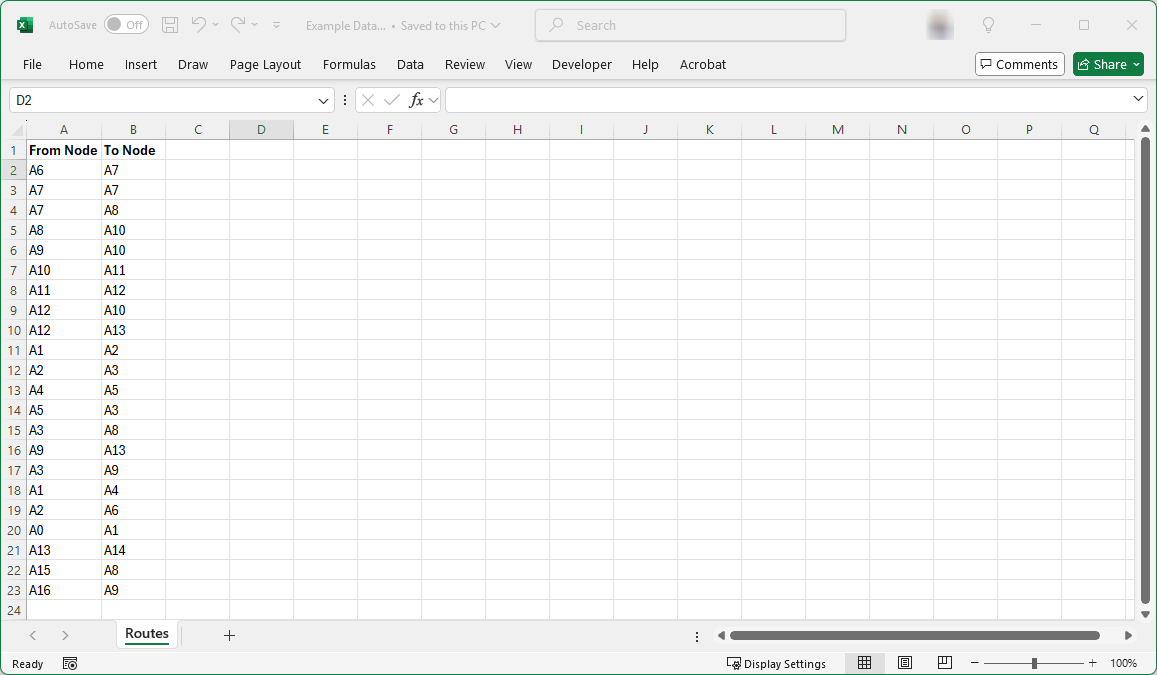
Assume you have an Excel workbook with a worksheet named Routes containing 2 columns listing nodes in random order. The columns specify which node is the next node (i.e. From Node -> To Node).
The data appears as:
Use Case 1 - Graph Everything
The simplest way to graph this data is to use the following SQL query:
SELECT [From Node] AS [ITEM], [To Node] AS [RELATED ITEM] FROM [Routes$]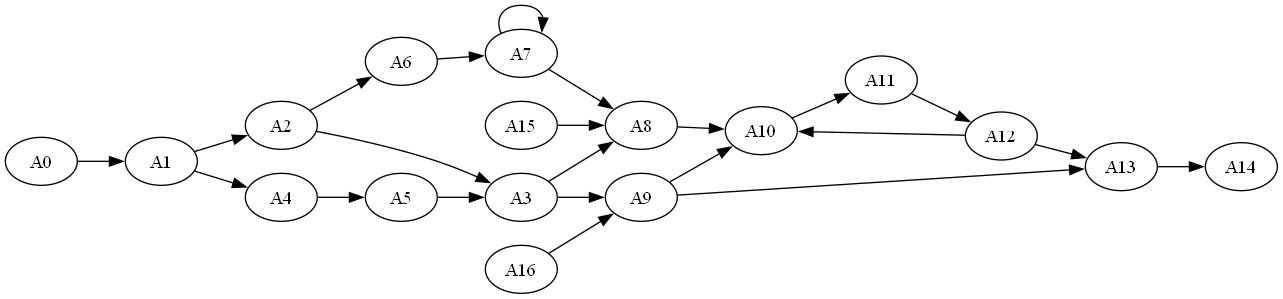
The issue with this query is that it only displays the entire graph and cannot be used to extract a subset tree. Lets resolve the issue by using a Tree Query.
Use Case 2 - Forward Search from a Node
This recursive query specifies a START node. It will show all the branches which flow from node A0.
SELECT
  'SELECT [To Node], [From Node] AS [ITEM], [To Node] AS [RELATED ITEM]
     FROM [Routes$] WHERE [From Node] = ''{WHERE VALUE}'''
              AS [TREE QUERY],
  'A0'        AS [WHERE VALUE],
  'To Node'   AS [WHERE COLUMN]
Notice that this graph looks very similar to the graph in Use Case 1, however nodes A15 and A16 are not present as there are no branches originating from node A0 which connect to A15 or A16.
Use Case 3 - Forward Search from a Node, with Max Depth
This query specifies a START node. It will show up to 3 levels of branches which flow from node A0 (i.e. root node + 3 branches).
SELECT
  'SELECT [To Node], [From Node] AS [ITEM], [To Node] AS [RELATED ITEM]
     FROM [Routes$] WHERE [From Node] = ''{WHERE VALUE}'''
              AS [TREE QUERY],
  'A0'        AS [WHERE VALUE],
  'To Node'   AS [WHERE COLUMN],
  3           AS [MAX DEPTH]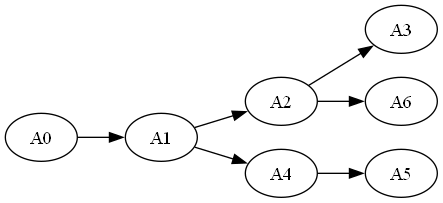
Notice that the tree stops after 3 levels of branches originating from node A0 have been recursed.
Use Case 4 - Backward Search from a Node
This query specifies an END node. It will show all the branches which flow to node A9.
Notice that this query is changed from Use Case 3 to use [To Node] in the base case portion of the query WHERE [From Node] = ''{WHERE VALUE}'' and set From Node as the WHERE COLUMN as the recursive member.
SELECT
  'SELECT [From Node], [From Node] AS [ITEM], [To Node] AS [RELATED ITEM]
     FROM [Routes$] WHERE [To Node] = ''{WHERE VALUE}'''
              AS [TREE QUERY],
  'A9'        AS [WHERE VALUE],
  'From Node' AS [WHERE COLUMN]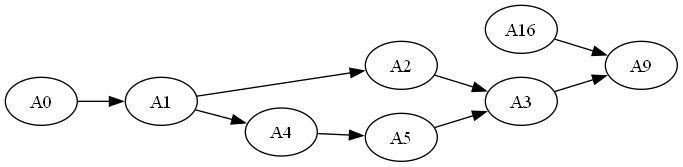
Notice in this Use Case the graph stops when node A9 is reached. In this example node A16 is present because it connects directly to node A9. Nodes A6, A7, and A8 are not present as those routes never connect to node A9.
Use Case 5 - Backward Search from a Node, with Max Depth
This query specifies an END node, and the [MAX DEPTH] parameter. It will show up to 3 levels of branches which precede and flow to node A9 (i.e. 3 branches + final node).
SELECT
  'SELECT [From Node], [From Node] AS [ITEM], [To Node] AS [RELATED ITEM]
     FROM [Routes$] WHERE [To Node] = ''{WHERE VALUE}'''
              AS [TREE QUERY],
  'A9'        AS [WHERE VALUE],
  'From Node' AS [WHERE COLUMN],
  3           AS [MAX DEPTH]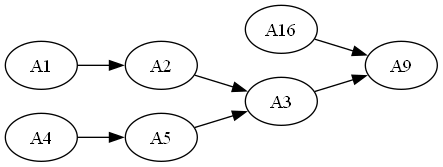
Notice in this Use Case that 3 levels of branches preceding node A9 are present. The connection between node A1 and A4 is not present because the MAX DEPTH limit was reached with node A1, therefore A1 was not recursed to determine its connections.
Use Case 6 - Combining Queries to Highlight Edges
This Use Case shows how you can highlight edges in a graph by recursing nodes and applying style attributes. It combines the examples above to show the entire graph. It then shows 3 levels of routes leading to node A9 in blue, and 3 levels of routes departing node A9 in red.
Note: the strict edge option on the Graphviz ribbon tab is enabled to prevent duplicate edges from being drawn.
-- Step 1 - Get all the routes

SELECT [From Node] AS [ITEM], [To Node] AS [RELATED ITEM] FROM [Routes$]

-- Step 2 - Recurse 3 branches of nodes which converge on node A9.
-- Change the edge color to blue

SELECT
  'SELECT [From Node], [From Node] AS [ITEM], [To Node] AS [RELATED ITEM],
     ''color=blue'' as [Attributes]
     FROM [Routes$] WHERE [To Node] = ''{WHERE VALUE}'''
              AS [TREE QUERY],
  'A9'        AS [WHERE VALUE],
  'From Node' AS [WHERE COLUMN],
  3           AS [MAX DEPTH]

-- Step 3 - Recurse 3 branches of nodes which branch out from node A9.
-- Change the edge color to red

SELECT
  'SELECT [To Node], [From Node] AS [ITEM], [To Node] AS [RELATED ITEM],
     ''color=red'' AS [Attributes]
     FROM [Routes$] WHERE [From Node] = ''{WHERE VALUE}'''
              AS [TREE QUERY],
  'A9'        AS [WHERE VALUE],
  'To Node'   AS [WHERE COLUMN],
  3           AS [MAX DEPTH]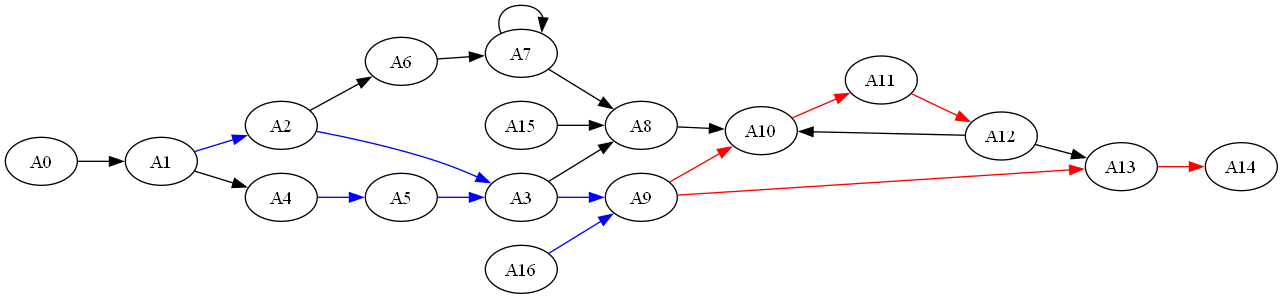
Try it Yourself
The files used in these examples are contained in the \Relationship Visualizer\samples\12 - Using SQL - Trees directory in the zip file download.