
Style Designer
The Graphviz DOT language includes many attributes that control the appearance of nodes and edges. The style designer worksheet helps you compose style specifications without needing to know every detail of the DOT language.
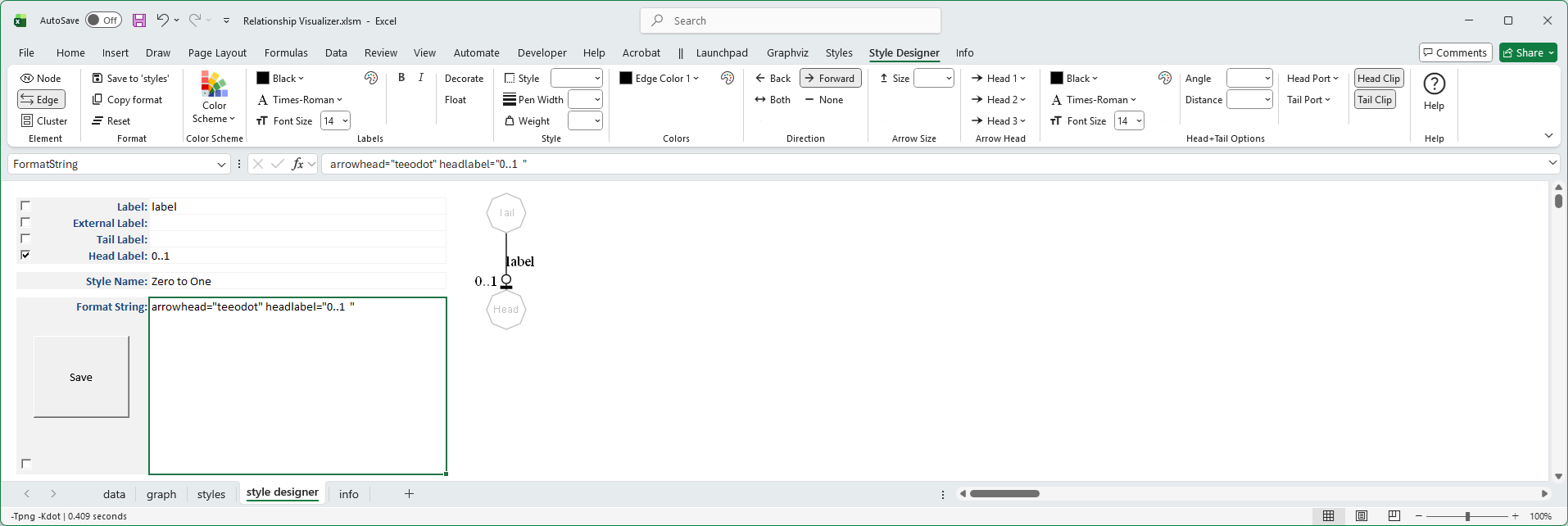
The worksheet appears as follows:
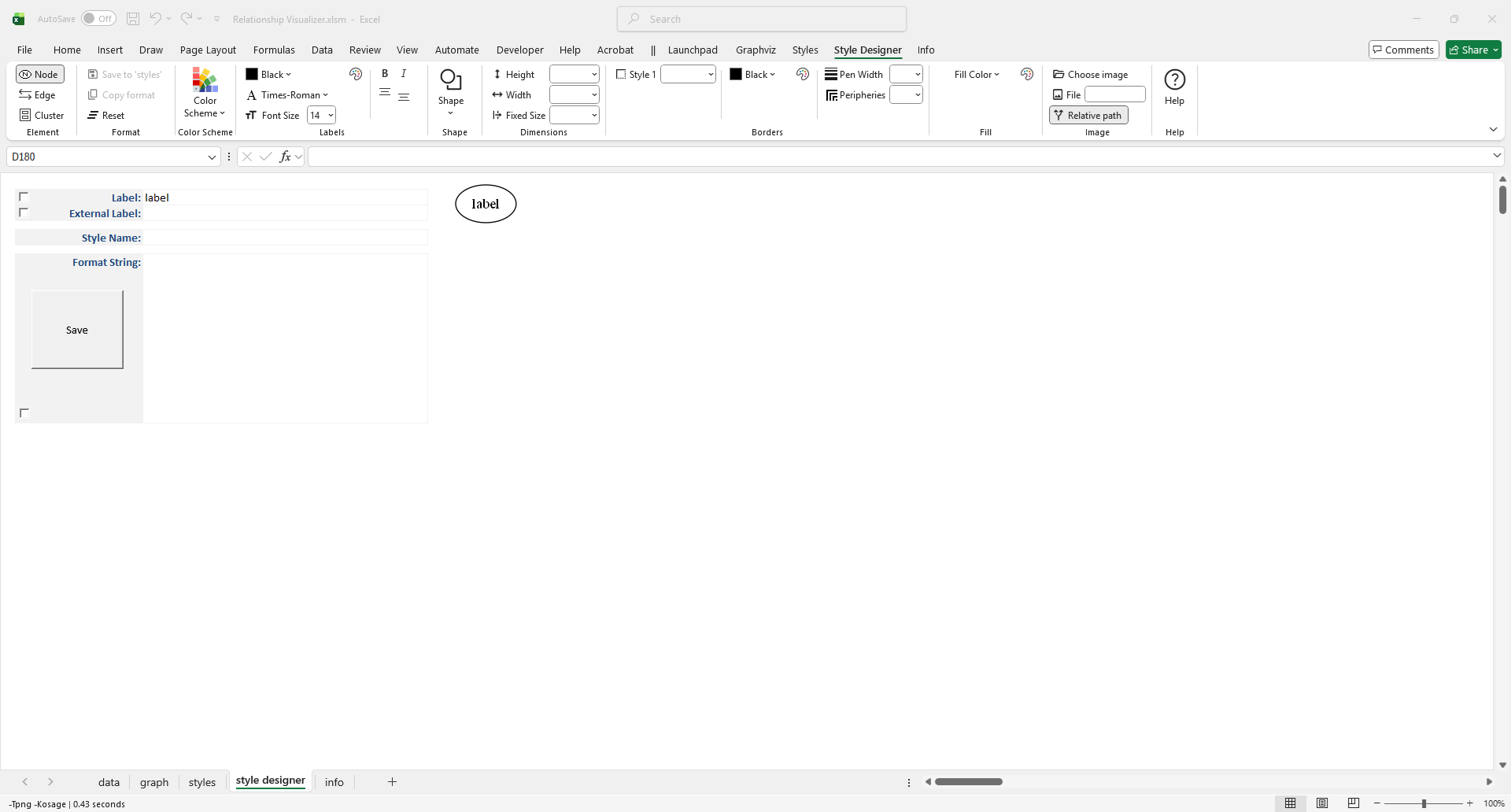
Overview
The Style Designer worksheet provides an adaptive interface for composing Graphviz style specifications. It consists of the following constructs:
- Ribbon — clickable choices for Graphviz’s visible attributes.
- Label Fields — preview areas where you can enter and view text.
- Style Name — the name of the style on the
stylesworksheet - Preview Image — generated by Graphviz to show exactly how your combination of attributes will be rendered.
- Format String — the underlying style specification containing the Graphviz attributes.
- Save Button — saves the style definition to the Styles worksheet, where it can be applied to rows in the Data worksheet.
Ribbon Controls
The Style Designer ribbon tab provides three dynamic design modes, controlled by the Element radio buttons in the left‑most group. These modes let you create node styles, edge styles, and cluster styles. The ribbon controls update automatically as you make selections.
Node design mode
Displays the Graphviz node-related attributes.
Windows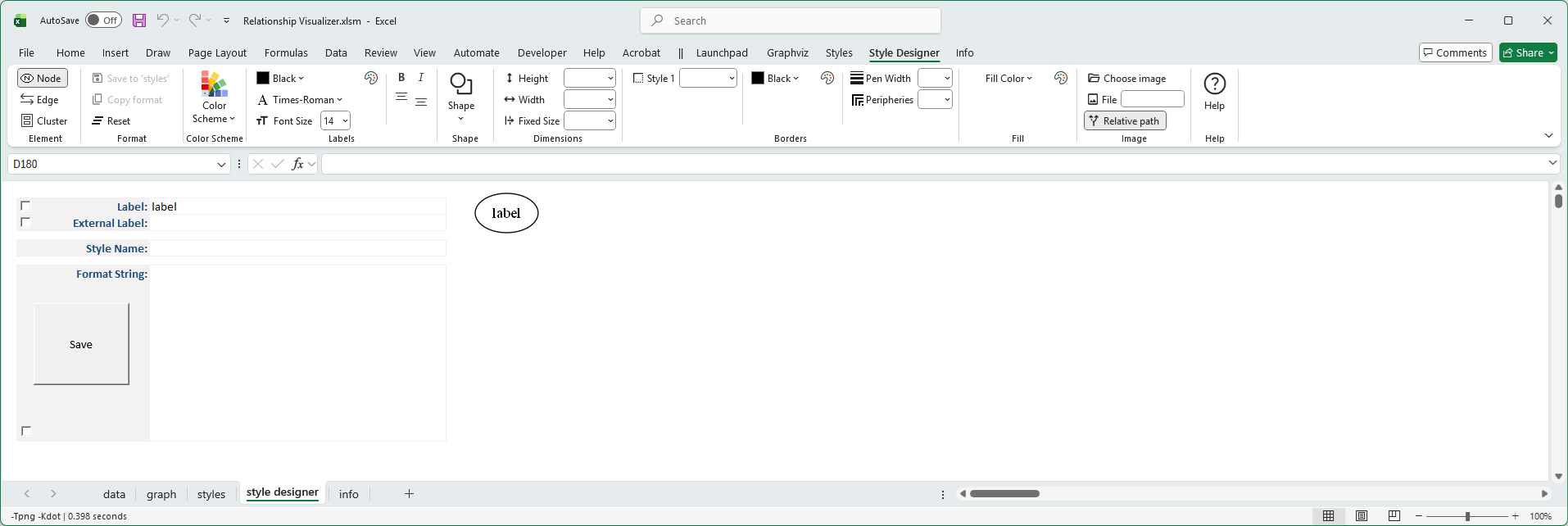
macOS

Edge design mode
Displays the Graphviz edge-related attributes.
Windows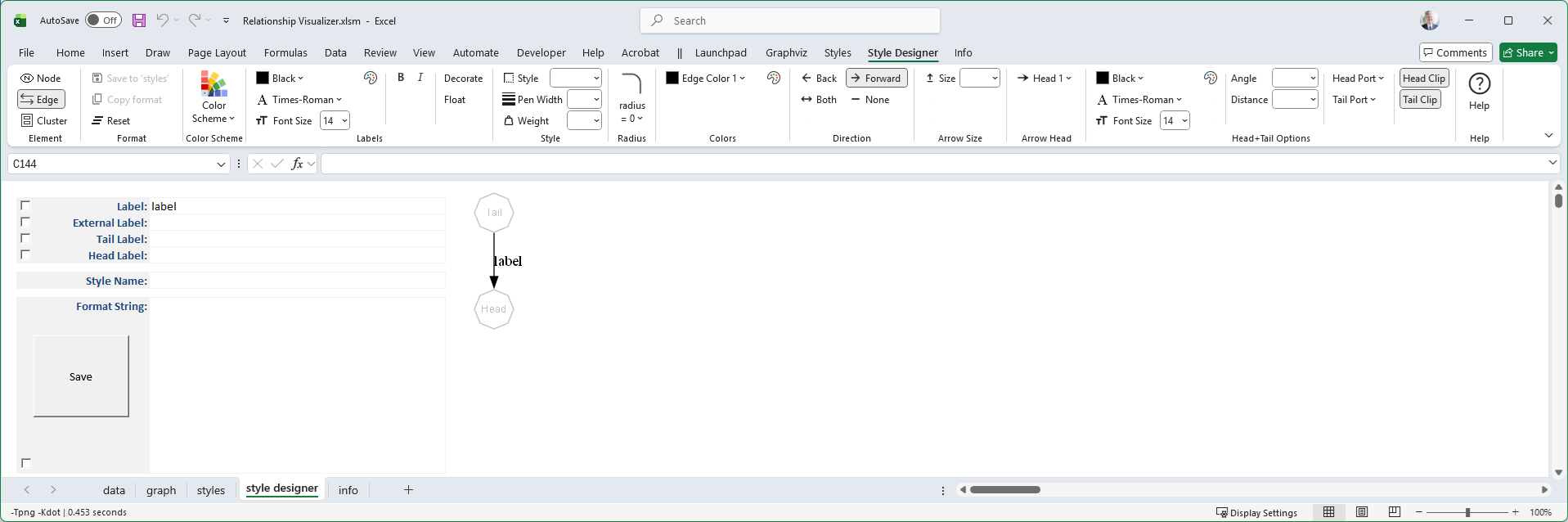
macOS
Cluster design mode
Displays the Graphviz cluster-related attributes.
Windows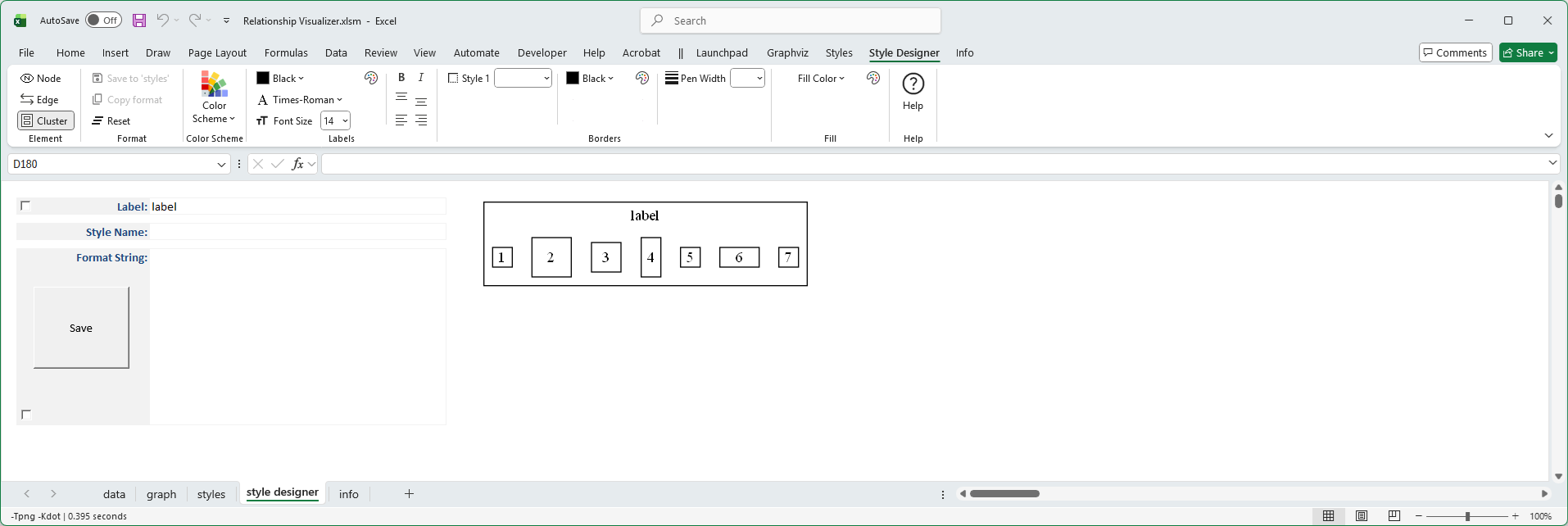
macOS
You define styles by making selections on the Style Designer ribbon tab. As you choose options, a format string is generated, and a sample rendering of the node, edge, or cluster is produced using the graphing engine and spline values from the Graphviz ribbon tab (explained later).
Use these elements as guides when making selections on the Style Designer worksheet, ensuring that appropriate Graphviz attributes are applied in context. For example, when Element = Edge, attributes such as shape are not offered because they are not valid for edges.
In each design mode, you can experiment with different values until you achieve a visually pleasing result.
Label Fields
The Label Fields let you define text that appears in the preview image on nodes, edges, or clusters.

The fields shown depend on the current design mode and what Graphviz supports in that context:
| Design Mode | Label | External Label | Tail Label | Head Label |
|---|---|---|---|---|
| Node | ✅ | ✅ | ||
| Edge | ✅ | ✅ | ✅ | ✅ |
| Cluster | ✅ |
Each label field has an associated check box:
- Checked → The label is included in the style definition and will appear whenever the style is applied.
- Unchecked → The label is shown only as representational text in the preview image, not part of the saved style.
Example
Suppose you are defining an edge style to represent a zero‑to‑one relationship. By entering the caption “0:1” in the Head Label field and checking its box, the label will be included in the style definition. Whenever this "Zero to One" edge style is used, the “0:1” caption will automatically appear next to the arrowhead.
Style Name

This cell contains either:
- The name you want to assign to a new style definition.
- The existing name of the style definition on the
stylesworksheet which is being modified.
Format String
As you make selections the Format String cell builds a list of Graphviz style attributes and writes them to the large cell below:

The Format String cell is also an active cell, meaning you can edit it directly to fine‑tune settings beyond the options provided in the drop‑down lists.
For example:
- The font size list jumps from 36 to 48.
- If you want a font size of 40, you may type the value directly into the cell.
⚠️ Important Notes
- Any change made in the Ribbon will overwrite hand‑made edits in the Format String, since ribbon changes rebuild the specification.
- Conversely, deleting all the contents of the Format String cell will reset the Ribbon settings back to their default values.
Save Button
The large Save button, along with the Save to 'styles' button in the Ribbon, saves the contents of the Format String using the specified Style Name on the Styles worksheet.
- Each saved style definition is stored as a row in the Styles worksheet.
- These saved styles can then be applied to rows in the Data worksheet.
- This workflow allows you to build a library of reusable node, edge, or cluster styles.
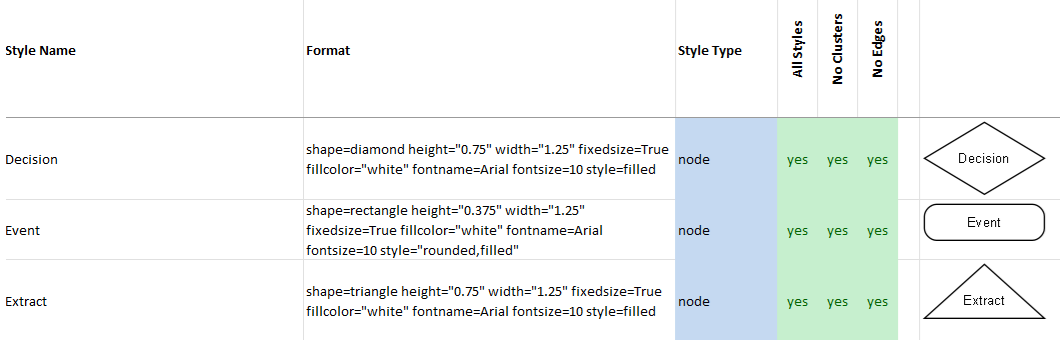
For example, the image below shows three Node style definitions created with the Style Designer and saved on the Styles worksheet:
Color
Graphviz Color Schemes
Color is a key aspect of any visualization, and the Style Designer provides full support for all Graphviz color schemes.
Graphviz defines a color scheme as the context for interpreting color names.
If a color value has the form "xxx" or "/xxx", then the color xxx is evaluated according to the current color scheme. If no color scheme is set, the standard X11 naming is used.
For example, if colorscheme="bugn9", then color="7" is interpreted as /bugn9/7.
This may sound complicated, so let’s simplify:
- The Colors button on the Launchpad ribbon shows or hides the HELP – colors worksheet.
- This worksheet lists all supported Graphviz color schemes (267 in total).
- Each scheme contains between 3 and 656 colors.
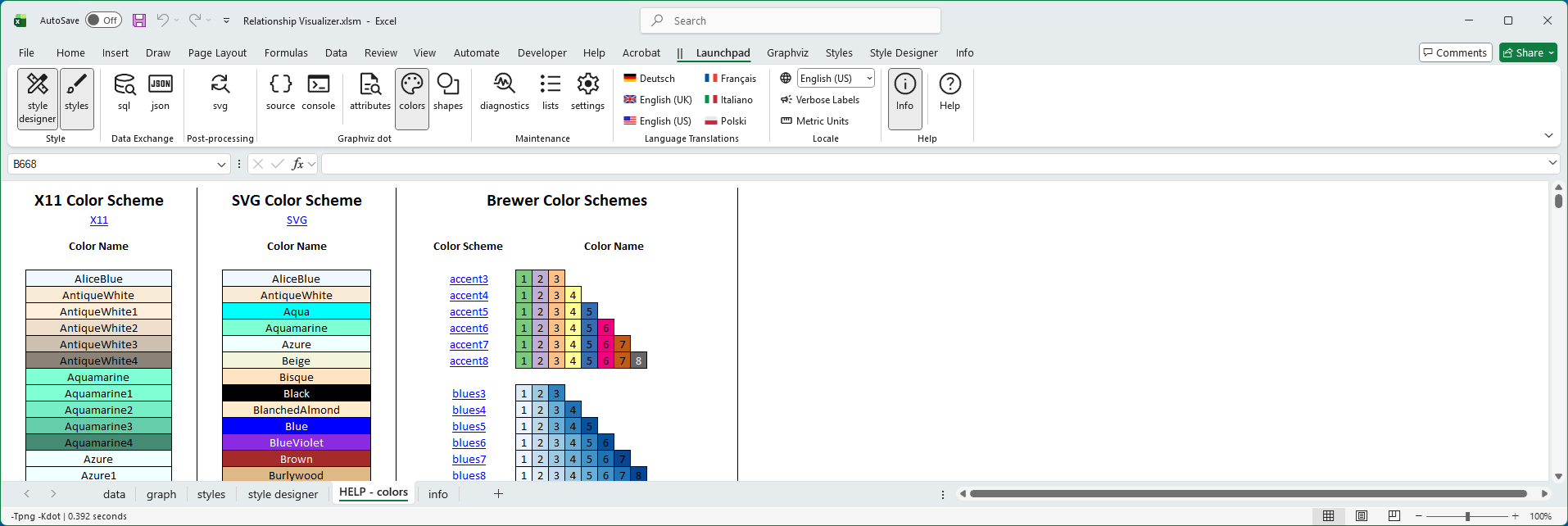
This worksheet is used behind the scenes to generate preview images for color choices.
Style Designer Color Schemes
Graphviz supports multiple color scheme families, which define how color names are interpreted. All Graphviz color schemes are supported in the Style Designer.
The Style Designer ribbon provides a large Color Scheme button and color drop‑down lists to help you select and apply these schemes.
Major Color Scheme Families
X11
- Graphviz’s default color scheme.
- Largest predefined set of colors (656 choices).
- Useful for broad, general‑purpose visualization with familiar names like HotPink1 or LightSkyBlue.
SVG
- Matches the standard color set defined by the SVG specification.
- Smaller, web‑friendly palette of named colors.
- Ideal for consistency with web graphics and cross‑platform rendering.
Brewer
- Based on Cynthia Brewer’s ColorBrewer palettes, designed for data visualization.
- Provides carefully balanced sequential, diverging, and qualitative color schemes.
- Useful for maps, charts, and diagrams where perceptual uniformity and accessibility are important.
Choosing a Color Scheme
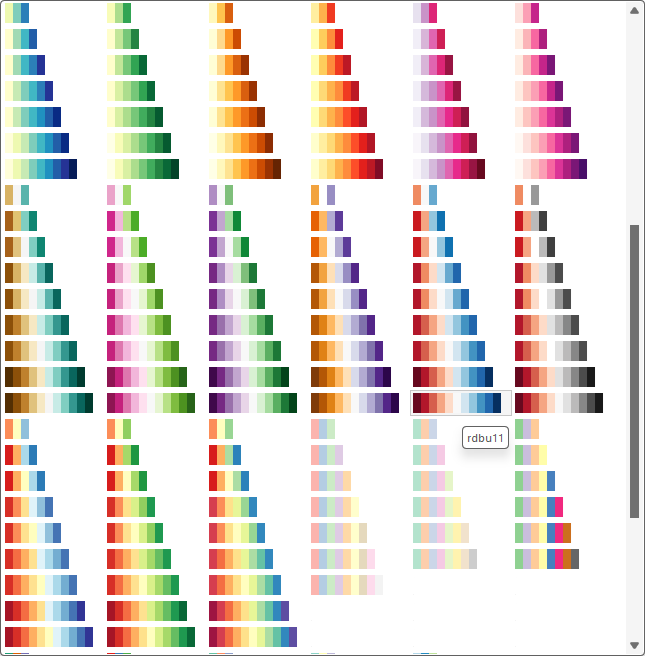
Clicking the Color Scheme button opens a gallery where you can choose a scheme:

When you select a scheme, all color‑related drop‑down lists are refreshed to display the colors for that scheme.
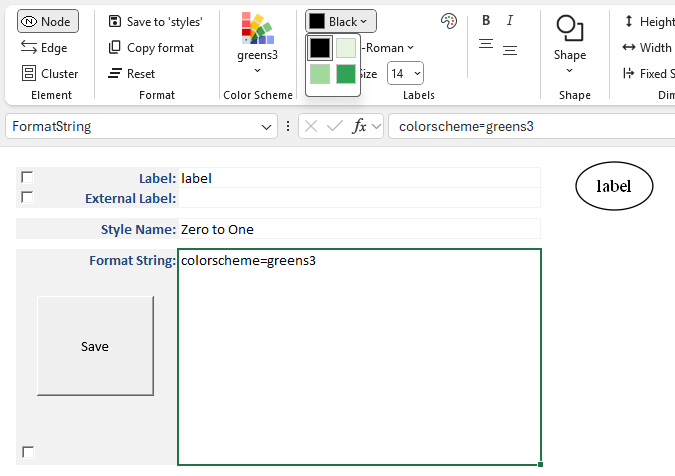
For example, choosing greens3
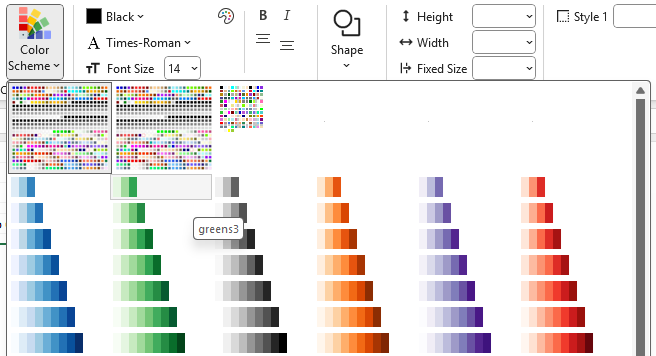
updates the lists to values 1, 2, and 3, displays color icons, and adds the attribute colorscheme=greens3 to the Format String.
If you switch to another scheme, the lists refresh again.
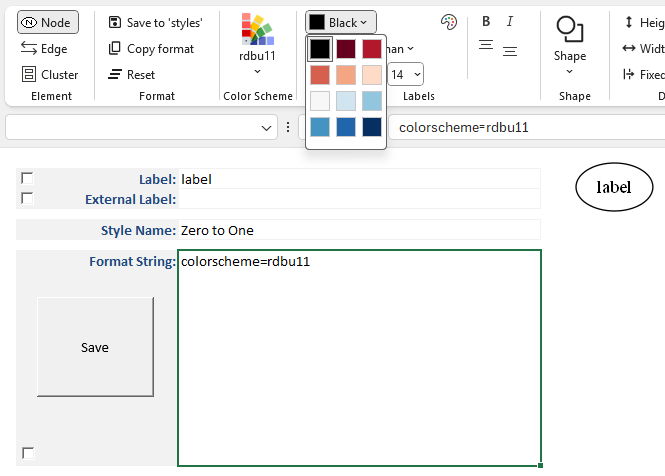
For example, after selecting greens3,
choosing rdbu11 updates the lists to values 1 through 11, displays color icons, and adds colorscheme=rdbu11 to the Format String.
Selecting a Pre-defined Color
You choose colors by clicking on any of the color drop‑down arrows to open a gallery of available colors.
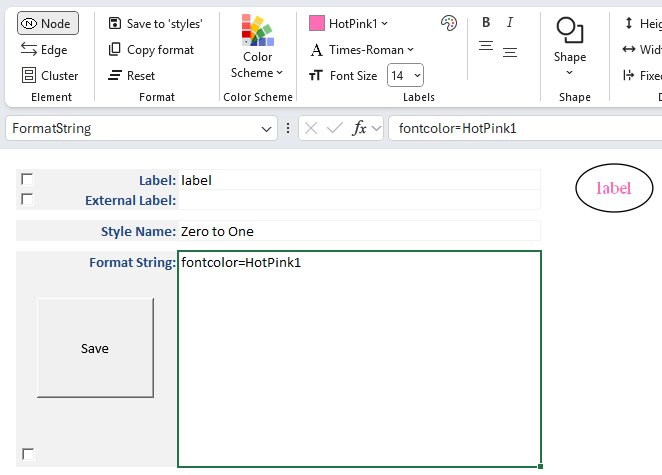
Hovering over a color shows its name, such as HotPink1 in the example below:
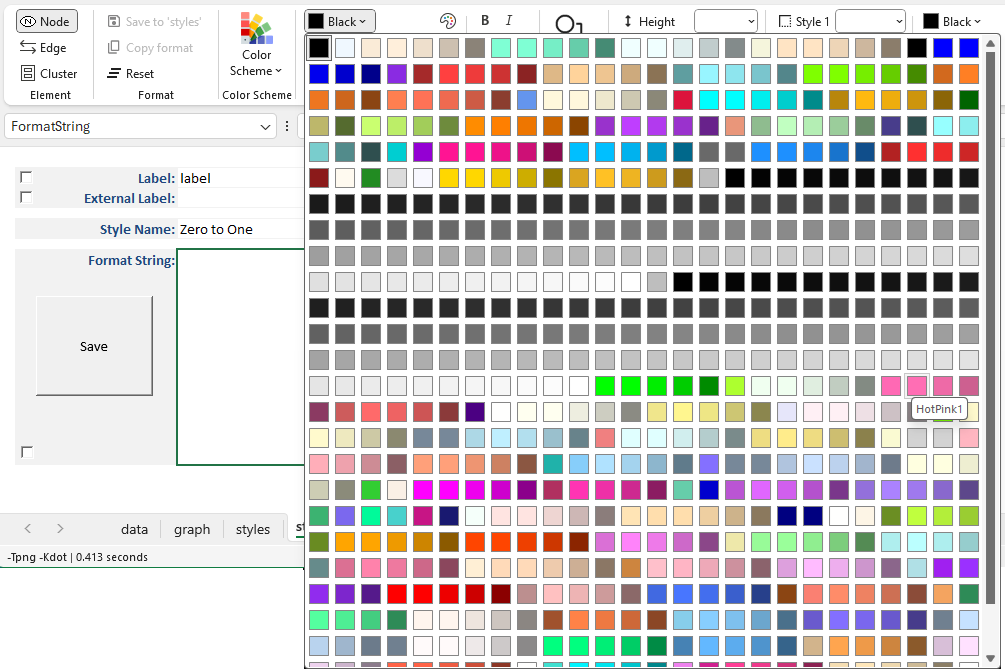
When you click on a color, the Style Designer ribbon updates to show both the color and its name.
The color name is added as an attribute in the Format String, and a preview image is generated to show how the color will appear when rendered by Graphviz.
In the example below, HotPink1 has been selected as the font color:
Selecting a Color Using RGB (Red Green Blue) Values
In addition to choosing from predefined color schemes, you can specify a custom color using the Color Dialog. To the right of each color choice dropdown is a small button with color icon which appears as:

This dialog provides a native interface for selecting colors on your operating system:
| Windows 11 Color Dialog | macOS Color Dialog |
|---|---|
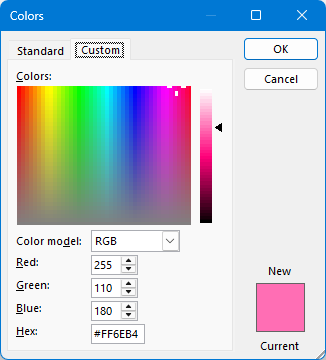 | 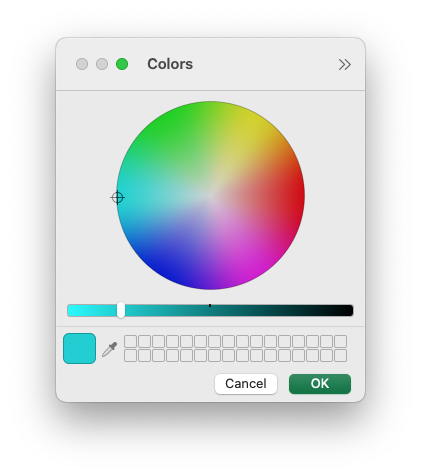 |
The Color Dialog is initialized to the currently chosen color.
If a named color from a color scheme is selected, it is automatically converted to RGB when the Color Dialog is displayed.
This allows you to first choose a color from a scheme, then refine it as needed using the picker.
For example, you might use the dialog to set a font color to a specific RGB value rather than relying on scheme‑based names.
When you select a color in the dialog:
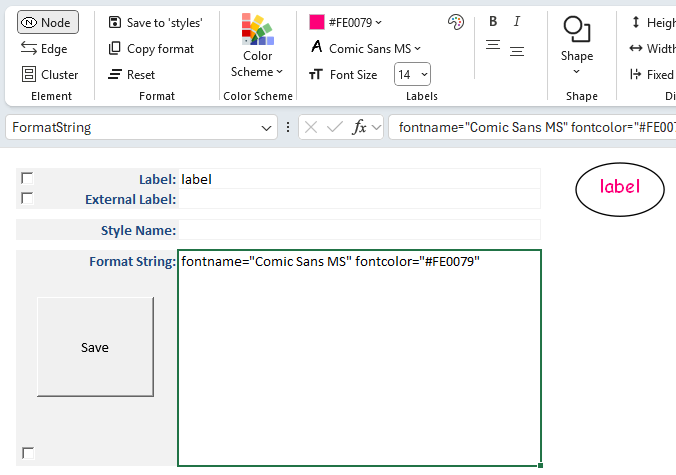
- The chosen color is displayed as an icon in the Style Designer ribbon, and the RGB value of the color is shown as the color name (for example,
#FE0079). - The color name or RGB value is added as an attribute in the Format String.
- A preview image is generated to show how the color will appear when rendered by Graphviz.
In the example below, both the Font Name and the Font Color have been specified, with the font color defined as an RGB value:
Labels
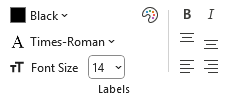
You can design styles which format label text using the following controls:
- Color
- Font
- Font size
- Bold
- Italic
- Label Location
 |
|---|
Label Fonts
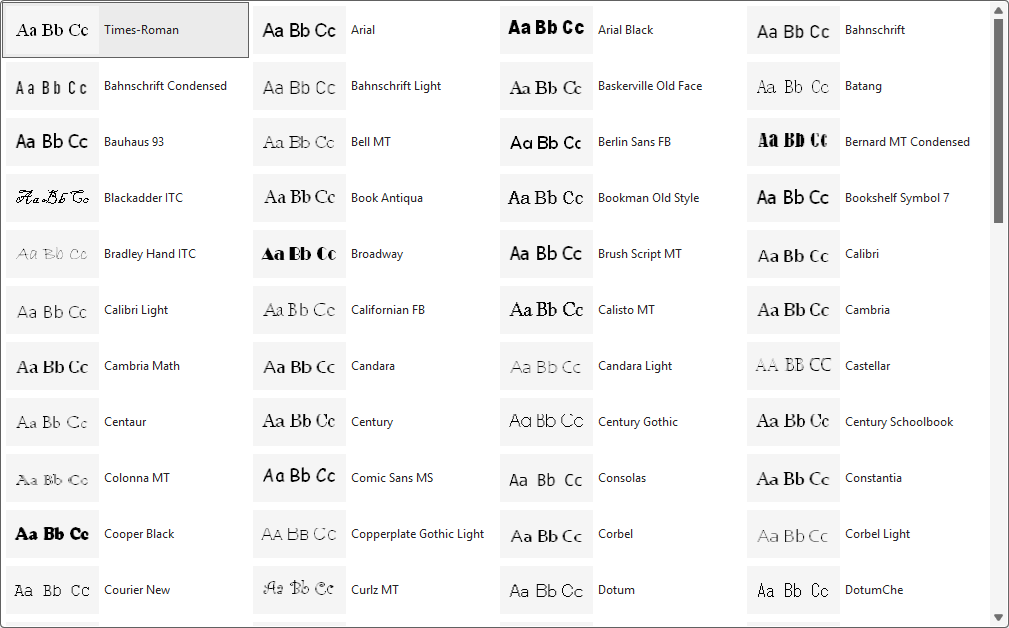
The Style Designer font drop‑downs present a gallery of fonts that Graphviz can render on your chosen operating system:
- Windows → The list is derived from the fonts installed on your PC, filtered to remove fonts known to be incompatible with Graphviz.
- macOS → A static list of fonts is provided from the lists worksheet.
When the Font Name drop‑down is selected for the first time, Graphviz generates a preview image of the letters Aa Bb Cc for each font.
These preview images are cached for future use. You may notice a slight delay the first time as the cache is built, but subsequent displays occur quickly.
An example Font Name gallery on Windows 11 appears as follows:
Selecting a Font
The currently selected font name is highlighted in the gallery.
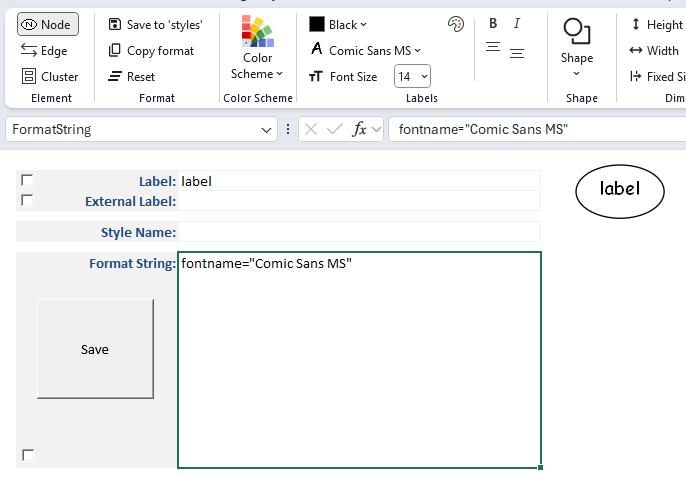
When you choose a font (e.g., Comic Sans MS):
- The Font Name caption on the drop‑down changes to the selected font.
- An icon of the letter A in the font appears in the ribbon to the left of the Font Name.
- The font name is added as an attribute in the Format String.
- A new preview image is generated, showing the associated labels rendered in the chosen font.
For example:
Label Location
Text can be aligned relative to the borders of a shape or cluster. Alignment is available as follows via the alignment buttons:
 |
|---|
| Position | Node | Cluster |
|---|---|---|
| Top | ✅ | ✅ |
| Center | ✅ | ✅ |
| Bottom | ✅ | ✅ |
| Left | ✅ | |
| Middle | ✅ | |
| Right | ✅ |
Shapes
Graphviz provides a wide variety of node shapes that you can apply in the Style Designer.
Shapes define the overall outline of a node and help visually distinguish different types of elements in your diagram.
Shapes can be used to convey meaning, organize information, or simply improve the readability of your graph.
For example, rectangles may represent processes, ellipses may represent entities, and diamonds may represent decisions.
Specifying a shape
Click on the Shape drop-down button.
 |
|---|
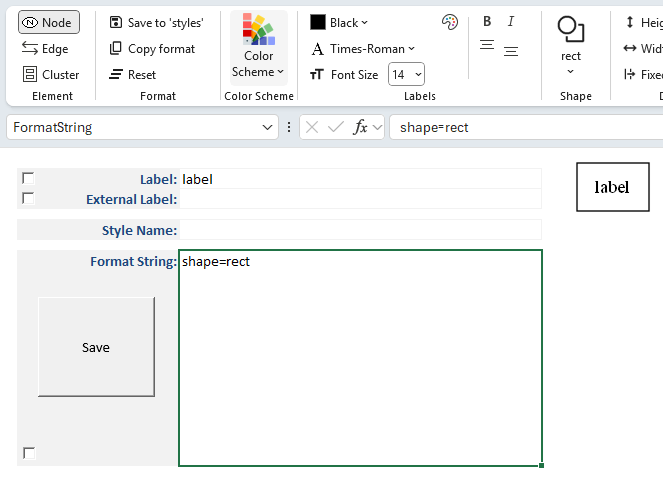
A gallery of shapes supported by Graphviz is presented showing a sample image of the shape.
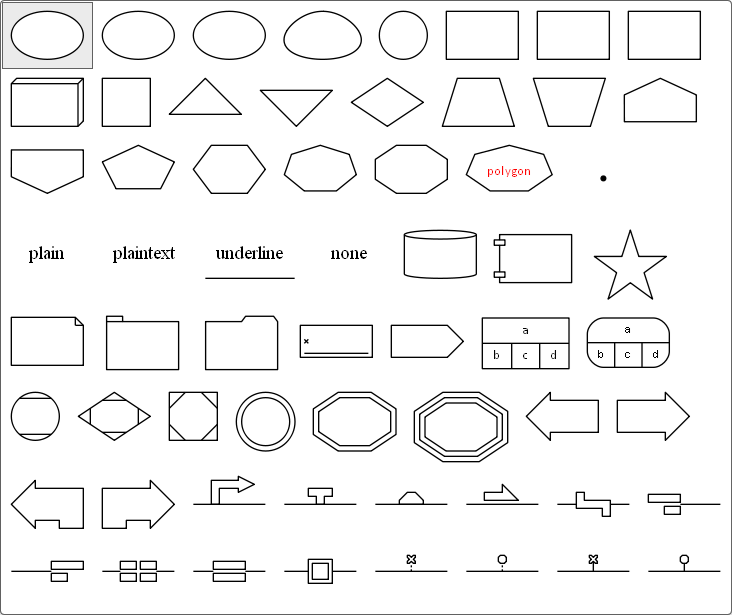
Here we pick one of the rectangle shapes. When you select a shape:
- The name of the chosen shape is displayed in the Style Designer ribbon as the caption of the
Shapebutton. - The shape name is added as an attribute in the Format String (e.g.,
shape=rect). - A preview image is generated to show how the node will appear when rendered by Graphviz.
Polygon Shapes
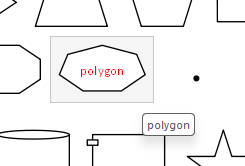
Polygon shapes are unique from other shapes in Graphviz and have extra attributes which control how the polygon is created.
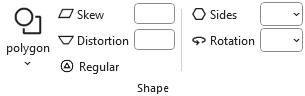
If you select 'polygon' as the shape the ribbon will change dynamically to present additional choices as shown below:
 |
|---|
Selecting polygon changes the ribbon to appear as:
 |
|---|
Polygon Skew
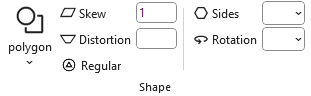
Positive values skew top of polygon to right; negative values skew the top of the polygon to the left.
Positive Skew
 |
|---|

shape="polygon" skew="1"
Negative Skew
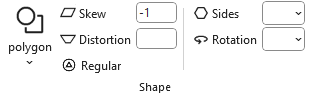 |
|---|

shape="polygon" skew="-1"
Polygon Distortion
Positive values cause top part of the polygon to be larger than bottom; negative values do the opposite.
Positive Distortion
|
|---|

shape="polygon" distortion="1" regular="No"
Negative Distortion
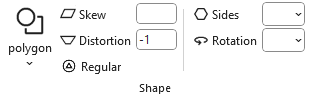 |
|---|

shape="polygon" distortion="-1" regular="No"
Combining Skew with Distortion
| + | skew="-1" | skew="0" | skew="1" |
|---|---|---|---|
| distortion="1" |  |  |  |
| distortion="0" |  |  |  |
| distortion="-1" |  |  |  |
Regular Polygon
If true, forces the polygon to be regular, i.e., the vertices of the polygon will lie on a circle whose center is the center of the node.
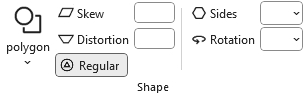 |
|---|
shape="polygon" regular="Yes"
Polygon Sides
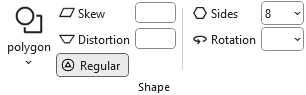
The sides attribute controls the number of polygon sides used when drawing a node shape.
- Default: A polygon has 4 sides (a square).
- sides < 4:
- If the polygon is not regular, Graphviz substitutes an ellipse.
- If the polygon is regular, Graphviz substitutes a circle.
- sides ≥ 4:
- The node is drawn as a polygon with the specified number of sides.
- For example,
sides=5produces a pentagon,sides=8a hexagon, and so on.
When you set sides, the chosen value is displayed in the Style Designer ribbon, added to the Format String (e.g., sides=6), and shown in the preview image.

sides=8
 |
|---|

shape="polygon" sides="8" regular=yes"
Elipses/circles can also be skewed and distorted to create unique shapes.
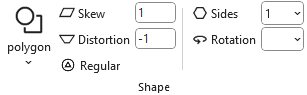 |
|---|
sides=1, with skew and distortion
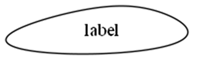
shape=polygon sides=1 skew=1 distortion="-1" regular=no
Polygon Rotation
The orientation attribute controls the rotation angle of a node shape. It determines how the shape is drawn relative to its default position.
orientation=0 (default)
- The shape is drawn in its standard upright position.
orientation=n
- The shape is rotated by n degrees, clockwise.
- For example,
orientation=45tilts the shape diagonally, whileorientation=90rotates it a quarter turn.
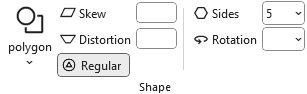
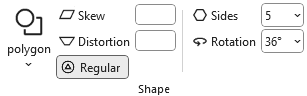
interaction with regular polygons
- When used with polygon shapes (via the sides attribute), orientation rotates the polygon around its center.
- For any number of polygon sides, 0 degrees rotation results in a flat base.
- This is useful for aligning triangles, diamonds, or other polygons to match the desired layout.
When you set orientation, the chosen value is displayed in the Style Designer ribbon, added to the Format String (e.g., orientation=90), and shown in the preview image.
| 5-sided regular polygon with no rotation | 5-sided regular polygon rotated 36 degrees clockwise |
|---|---|
 |  |
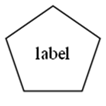 | 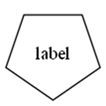 |
Dimensions
In Graphviz, you can control the height and width of node shapes to adjust their overall size. These attributes ensure that shapes are scaled consistently and remain readable in your diagram.
 |
|---|
Shape Height and Width
When you specify a shape’s dimensions:
- The chosen values are displayed in the Style Designer ribbon.
- The attributes
heightandwidthare added to the Format String (e.g.,height=1.0, width=2.0). - A preview image is generated to show how the resized shape will appear when rendered by Graphviz.
By default, Graphviz calculates shape dimensions automatically based upon the computed size of the label and its placement.
Specifying explicit values allows you to emphasize certain nodes, align shapes visually, or ensure uniform sizing across your diagram.
Units of Measure
Graphviz’s default unit of measure for shape dimensions is inches.
However, you can specify metric units by enabling the Metric Units checkbox on the Launchpad ribbon.
- When metric units are selected, display values are shown in millimeters (mm).
- These values are automatically converted to inches internally to satisfy Graphviz’s requirements.
- This allows you to work in familiar metric units while ensuring compatibility with Graphviz’s rendering engine.
Fixed Size
The fixedsize attribute controls whether a node’s shape is drawn at a fixed size or allowed to expand to fit its label text.
fixedsize=false (default)
- The node’s dimensions are adjusted automatically to fit the label.
- The attributes
heightandwidthact as minimum values. - Longer labels will stretch the shape horizontally or vertically as needed.
fixedsize=true
- The node’s dimensions are locked to the specified
heightandwidth. - Labels which exceed the width of the shape are truncated down equally from the left and right sides to fit inside the fixed shape.
- Useful for ensuring uniform node sizes across a diagram, regardless of label length.
- The node’s dimensions are locked to the specified
fixedsize=shape
- The node’s height and width are locked, but the label is allowed to stretch horizontally.
- This ensures consistent vertical sizing while accommodating longer text.
- Useful for diagrams where uniform height is desired, but labels vary in length.
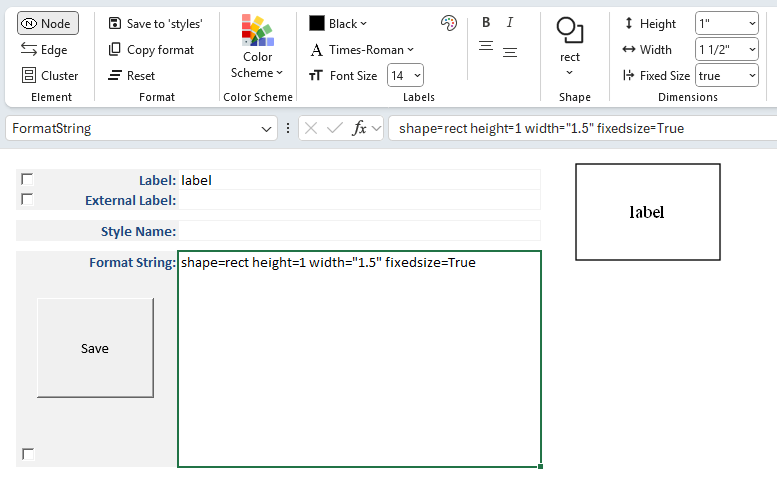
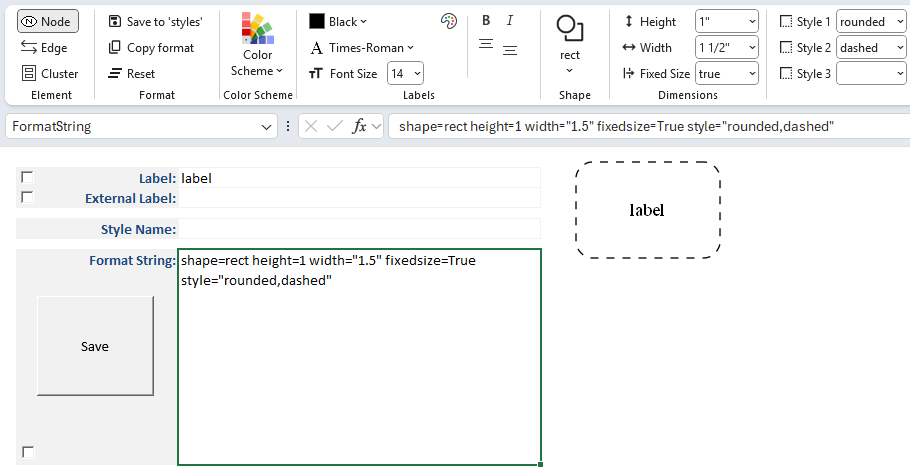
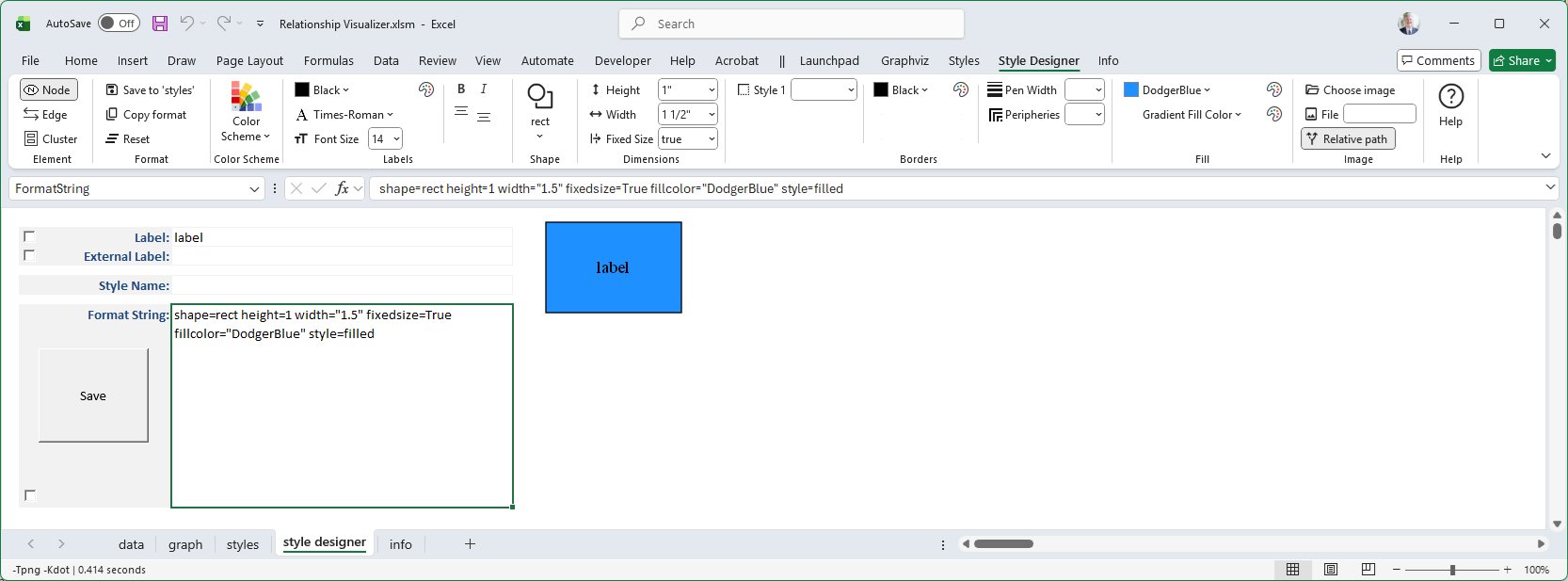
When you enable fixedsize, the chosen values are displayed in the Style Designer ribbon, added to the Format String (e.g., shape=rect height=1 width="1.5" fixedsize=True), and shown in the preview image.
Borders
Border Styles
Up to 3 border styles are selectable and are additive making it possible to have styles such as bold edge and rounded corners. When you click on any of the 'Border Style' drop-down lists you will be presented with the list of choices along with a sample image of the style.

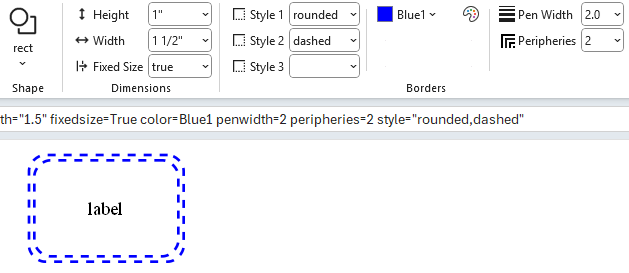
In this example Style 1 as rounded to give the rectangle rounded corners.
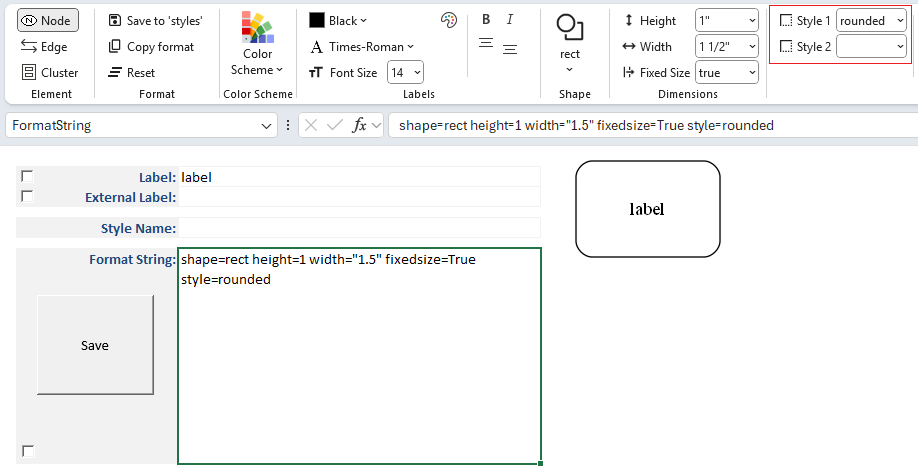
The Style Designer provides an adaptive interface for applying multiple border styles.
As you make selections, additional style options appear dynamically:
- Once a style is chosen, the Style 2 drop‑down becomes available.
- Selecting
dashedas the second choice results in a rounded, dashed border. - A Style 3 drop‑down then appears, allowing you to continue layering styles.
This adaptive behavior makes it easy to combine multiple visual effects without cluttering the interface.
Border Color
How to choose colors has already been explained.
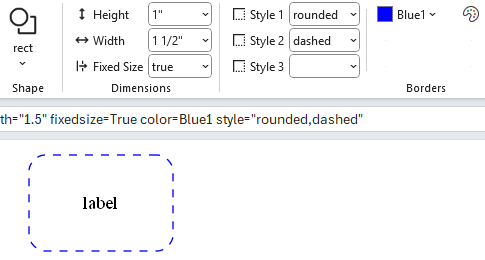
The Border Color controls allow you to specify the color of a node shape or cluster border.
For example:
Border Pen Width
The penwidth attribute controls the thickness of lines used to draw node borders and edges.
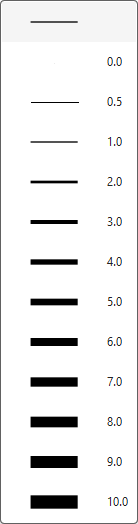
penwidth=1.0 (default)
- Standard line thickness.
- Borders and edges are drawn with a single‑pixel width.
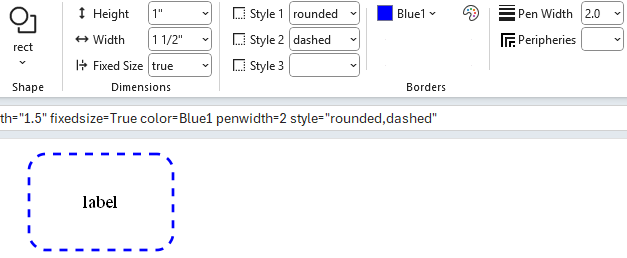
penwidth>1.0
- Increases line thickness proportionally.
- For example,
penwidth=2.0doubles the thickness, whilepenwidth=3.0triples it. - Useful for emphasizing certain nodes or edges in a diagram.
penwidth<1.0
- Decreases line thickness.
- For example,
penwidth=0.5produces a thinner line than the default. - Can be used for subtle or secondary connections.
For example:
Border Peripheries
The peripheries attribute controls how many borders (or outlines) are drawn around a node shape.

peripheries=1 (default)
- A single border is drawn around the shape.
peripheries=2
- Two concentric borders are drawn, giving the node a “double‑outlined” appearance.
peripheries=n
- Any positive integer value
ndraws that many concentric borders. - Useful for visually emphasizing certain nodes or distinguishing categories.
- Any positive integer value
For example:
Fills
Fill Color
The fillcolor attribute controls the interior color of a node shape or cluster. It determines how the inside of the shape is rendered, providing contrast with the border and improving visual clarity.
Fill colors can be selected from predefined color schemes or refined using the Color Dialog.
They are often used to group related nodes, highlight important elements, or improve the overall readability of a diagram.
When you specify a fill color:
- The chosen color is displayed in the Style Designer ribbon, and the
Fill Colorcaption changes to the name or RGB value of the color chosen. - A new dropdown for
Gradient Fill Colorappears below the fill color. - The color name or RGB value is added as an attribute in the Format String (e.g.,
fillcolor=DodgerBlue). - A preview image is generated to show how the node will appear when rendered by Graphviz.
For example:
Gradient Fill Color
Notice that the ribbon dynamically changes once a Fill Color is specified to display a new choice for Gradient Fill Color.
 |
|---|
A Gradient Fill Color allows you to select a second color which the Fill Color will gradually transition to. If you select HotPink as the Gradient Fill Color the preview image changes to look like:
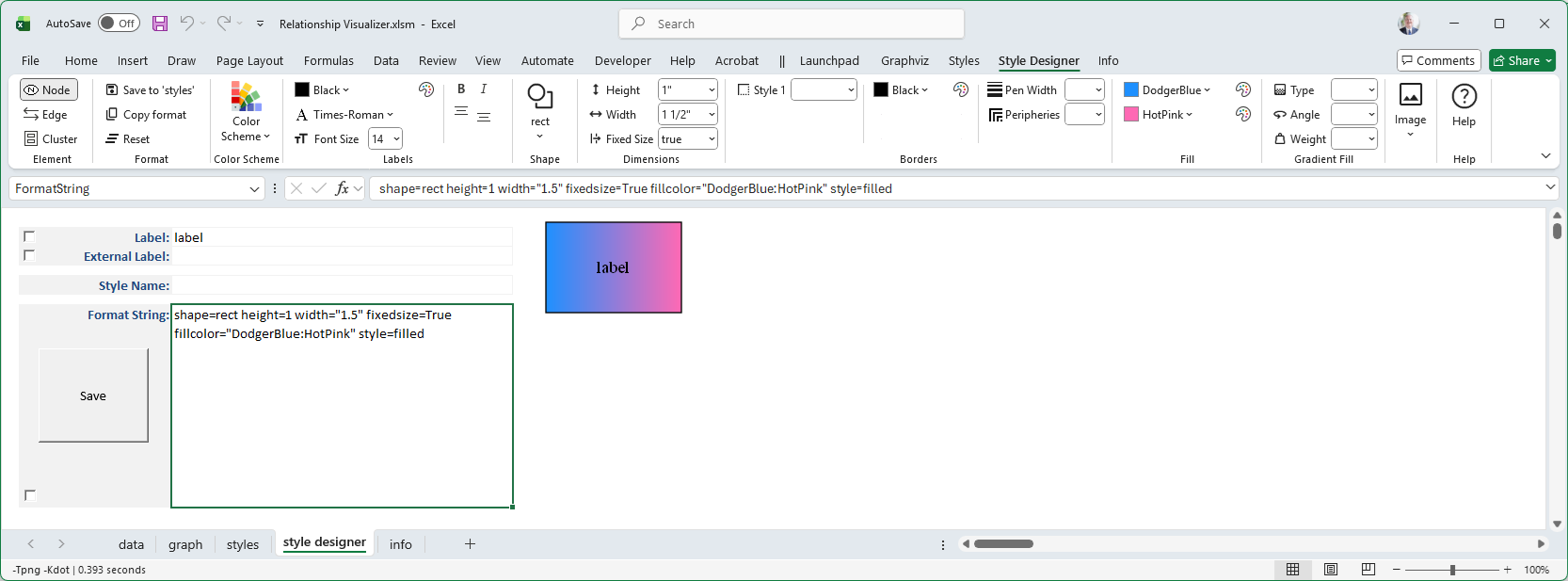
Another set of dynamic changes occur as three additional choices Type, Angle, and Weight appear to the right of the fill color selections. These choices allow you to define how the gradient transition occurs.
Gradient Type
The gradienttype attribute controls how multiple colors blend together inside a node shape or cluster. Instead of filling the shape with a single solid color, you can apply a gradient to create smooth transitions between colors.
Gradient types can be used to highlight relationships, emphasize categories, or simply add visual appeal. For example, a vertical gradient may suggest progression, while a radial gradient can emphasize a central point.
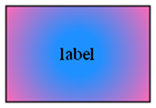
The Gradient Type is either filled (i.e., linear) or radial.

The differences are illustrated below:
gradienttype=filled | gradienttype=radial |
|---|---|
 |  |
Gradient Angle
The gradientangle attribute controls the direction of a gradient fill inside a node shape or cluster.
It determines how the colors specified in the fillcolor attribute are blended across the shape.
Changing the Gradient Angle moves the angle of the gradient fill.
- For linear fills, the colors transform along a line specified by the angle and the center of the object.
- For radial fills, a value of zero causes the colors to transform radially from the center; for non-zero values, the colors transform from a point near the object's periphery as specified by the value.
Angles are measured in degrees, with 0 representing a left‑to‑right horizontal gradient.
Other values rotate the gradient clockwise:
90→ top‑to‑bottom vertical gradient180→ right‑to‑left horizontal gradient270→ bottom‑to‑top vertical gradient
By adjusting the gradient angle, you can control the visual flow of color transitions, highlight directionality, or add subtle emphasis to your diagram.
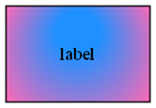
For example, if you change the Gradient Angle to 90 degrees, the preview images now appear as:
gradienttype=filled gradientangle=90 | gradienttype=radial gradientangle=90 |
|---|---|
 |  |
Gradient Weight
The gradient weight is specified as part of the fillcolor attribute, not as a separate attribute. It controls how much influence each color has in a gradient fill.
When you define a gradient:
- The colors are listed in the fillcolor string, separated by a colon.
- A semicolon followed by a numeric value (between 0.0 and 1.0) specifies the weight.
- The weight determines the balance between the first and second colors.
For example, specifying a gradient weight of 20% for the fill color is specified as:
style=filled fillcolor="DodgerBlue;0.20:HotPink"
and the image appears as:
 |
|---|
By adjusting the gradient weight, you can highlight one color more strongly, create subtle shading effects, or achieve balanced transitions between multiple colors.
Gradient Weight + Gradient Angle
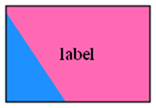
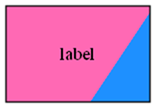
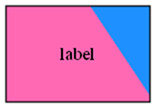
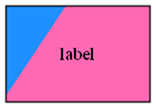
Gradient Angle can be combined with the Gradient Weight to rotate the position of the color split, as in these examples where the gradient weight of the blue fillcolor is 20%:
gradientangle=0 | gradientangle=90 | gradientangle=180 | gradientangle=270 |
|---|---|---|---|
|  |  |  |
gradientangle=45 | gradientangle=135 | gradientangle=225 | gradientangle=315 |
 |  |  |  |
Images
As you develop more advanced relationship graphs you may want to use images to represent the nodes in combination with, or in place of the node shapes. Graphviz supports an image= attribute where you can provide a file name of an image to include in a node.
The Relationship Visualizer by default will look for images in the directory where the spreadsheet is saved.
Image Storage and Paths
If you wish to store images in other locations, you must either:
- Make a configuration change on the Settings worksheet to specify the location(s).
- The image path must be defined before you can use the
image=attribute in a style definition.
- The image path must be defined before you can use the
- Include the path to the image directly, in either Relative or Absolute form.
Relative vs. Absolute Paths
Relative Path
- Specifies the image location relative to the workbook directory.
- Example:
images/logo.png - ✅ Easier portability — if the workbook and images are kept together in a folder, cloning or moving the folder preserves the links automatically.
- ✅ Ideal for sharing with others or using across multiple devices.
Absolute Path
- Specifies the full location of the image on your system.
- Example:
C:/Users/Jeffrey/Documents/Graphviz/images/logo.png - ✅ Ensures the image is always found, regardless of where the workbook is located.
- ✅ Useful when images are stored in a central repository or shared network drive.
- ⚠️ Less portable — moving the workbook without the same directory structure will break the link.
By choosing the appropriate path type, you can balance portability (relative paths) with certainty of location (absolute paths).
Add an image path
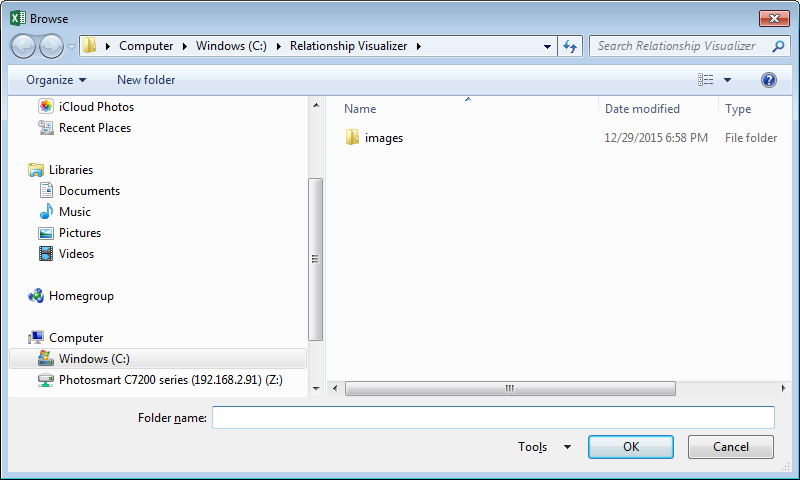
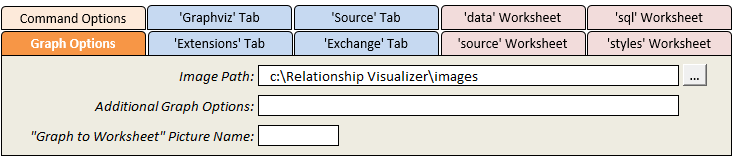
Switch to the settings worksheet and locate the "Image Path:" setting in the 'Graph Options' section. To the right of the cell is a button with three dots […]. If you press that button it will bring up the standard directory selection dialog which you can use to choose the directory where the images are stored. Navigate to the directory and press the "OK" button to transfer the path to the cell.
Your settings should appear like this:
Specify an image
Image name is an option on the style designer worksheet that is useful when you want to create a common style definition where all nodes of a given style use a common icon. For example, it is possible to depict computers with one image, depict databases with another image, and depict computer programmers with yet another image.
Step 1 - Define a shape. For this example a rectangle will be used.
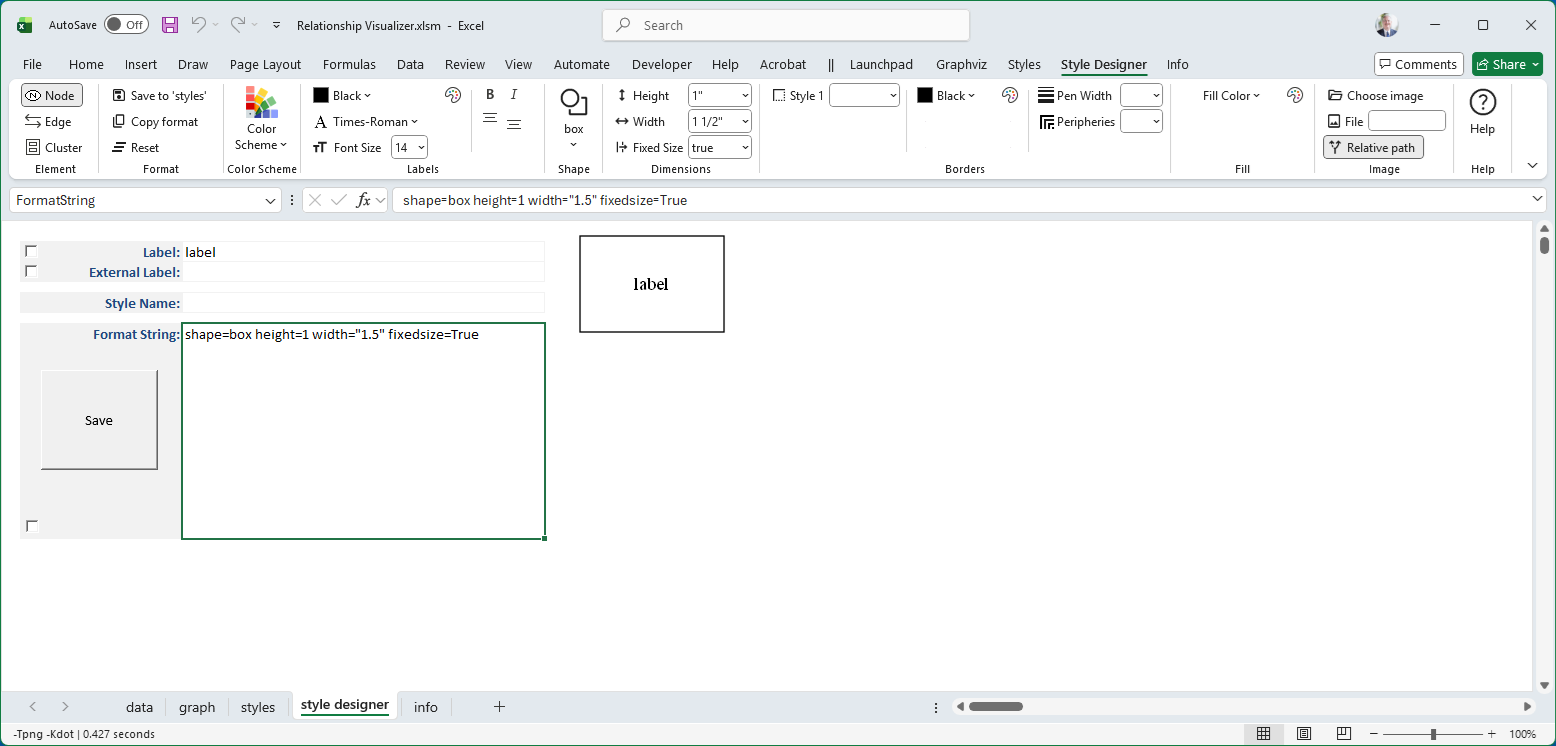
Step 2 - Look to the far right side of the Ribbon to find the image controls.
 |
|---|
Press the Choose Image button
Navigate to the directory containing the images and choose an image. A small image is selected in order to demonstrate scaling and placement.
The image by default is placed in the center of the node. For example:
 |
|---|
With the image selected, the Ribbon adapts to display additional options which can be used to scale the image, or position the image within the shape.
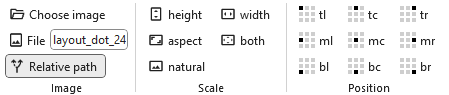 |
|---|
Scale the Image
Adjust the image by clicking the radio buttons in the Scale group. Only one button can be selected. If you make a second selection, your first selection is replaced.
| Scale | Radio Button | Preview | Description |
|---|---|---|---|
| height |  | 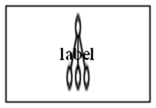 | Stretch image to fill node height; width remains unchanged. |
| width |  | 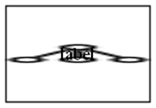 | Stretch image to fill node width; height remains unchanged. |
| aspect |  | 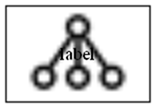 | Uniformly scale image to fit node while preserving aspect ratio. |
| both |  | 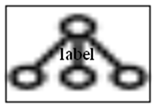 | Stretch image to fill both width and height of node; aspect ratio may distort. |
| natural |  | | Use image’s natural size; node expands to fit (default). |
No scaling (i.e. "natural" scaling) will be used in order to demonstrate how to position images which are smaller than the node.
Adjust the Image Position
The Position group contains nine toggle buttons that work in radio button fashion. Selecting any button automatically unselects the previously chosen option.
These buttons correspond to the nine possible locations where images can be placed relative to the cell or shape via the imagepos attribute:
| + | Left | Center | Right |
|---|---|---|---|
| Top | tl | tc | tr |
| Middle | ml | mc | mr |
| Bottom | bl | bc | br |
By default, when the imagepos attribute is omitted, the image is placed in the middle center.
You can reposition the image within the node by selecting a Position radio button, as shown below.
| Position | Buttons pressed | Preview Image |
|---|---|---|
| Default |  | |
| Top Left |  |  |
| Bottom Center |  |  |
Edges
Edges can have styles just as nodes do.
To create an edge style definition in the Style Designer worksheet:
Change the Design Mode Element to Edge.
- This switches the ribbon controls to attributes appropriate for edges (e.g.,
color,style,penwidth,arrowhead). - Node‑specific attributes such as
shapewill no longer be available.
- This switches the ribbon controls to attributes appropriate for edges (e.g.,
Press the Reset button.
- This clears all style values carried over from node definitions.
- Starting from a clean slate ensures that only edge‑specific attributes are applied.
Use the ribbon, preview image, and format string just as you did for nodes.
- The selected attributes are displayed in the ribbon.
- The Format String is updated with edge attributes (e.g.,
color=blue, style=dashed). - The preview image shows exactly how Graphviz will render the edge.
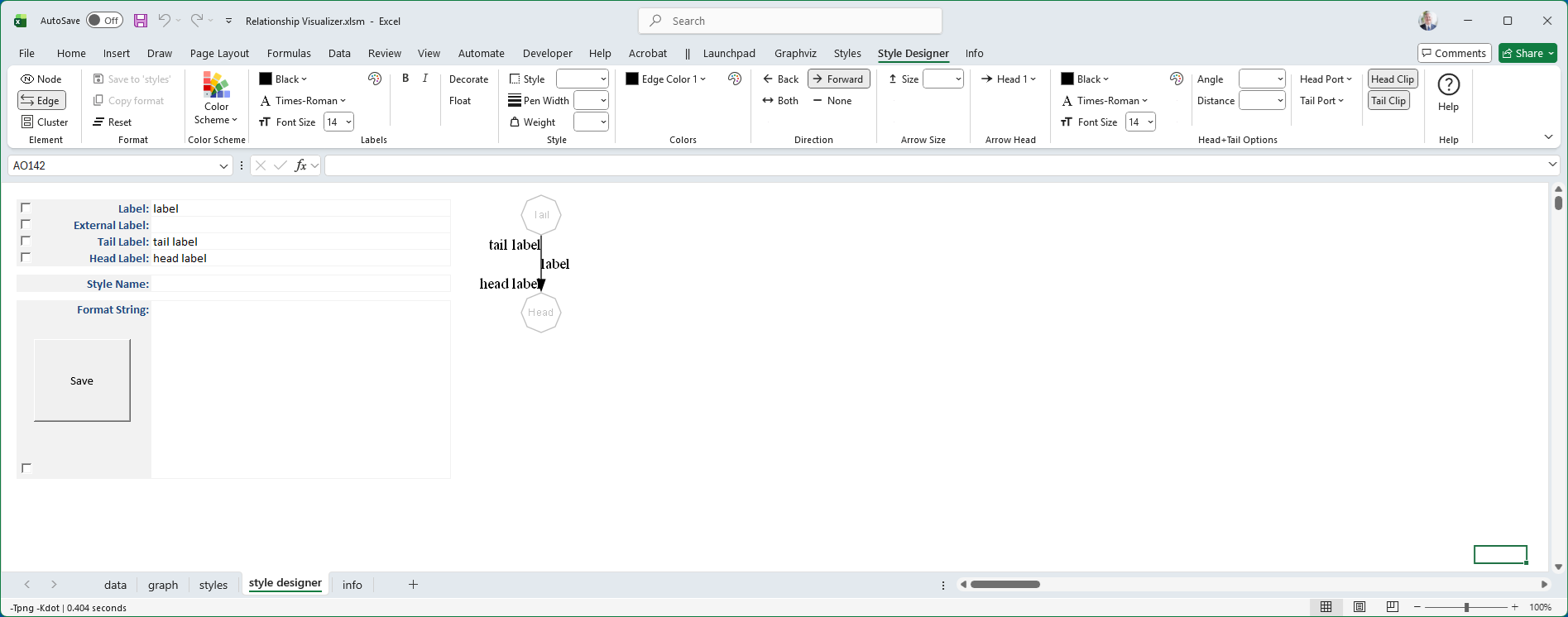
The style designer worksheet appearance changes to look as follows:
Edge Labels
Labels for edges are specified in the same way as labels for nodes, with the same styling options (e.g., font, color, size).
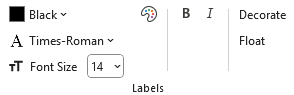 |
|---|
However, edge labels include two additional toggle attributes:
- Decorate - draws a line from the edge to its label, visually connecting the text to the edge.
- Float - allows the label to float freely near the edge rather than being anchored to a fixed position.
These options are available as toggle buttons in the Style Designer ribbon.
When selected, they are added to the Format String (e.g., decorate=true, float=true) and shown in the preview image.
Edge Style
Edges can be styled using several attributes available in the Style Designer worksheet.
These attributes control the visual appearance and relative importance of edges in the graph.
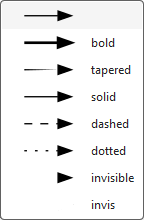
- Style
- Defines the line pattern or effect applied to the edge.
- Common values include
solid,dashed,dotted,bold, andtapered. - For example,
style=dashedproduces a broken line, whilestyle=boldthickens the edge for emphasis.
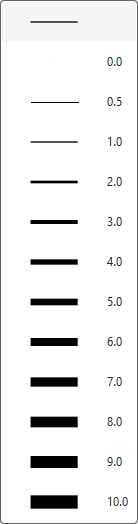
- Penwidth
- Specifies the thickness of the edge line.
- Larger values produce heavier lines, useful for highlighting important connections.
- Example:
penwidth=2.0doubles the default line thickness.
- Weight
- Influences how strongly the edge affects the layout.
- Higher weights encourage Graphviz to keep connected nodes closer together.
- Example:
weight=5makes the edge act like a stronger “spring” in the layout engine.
Edge Colors
Edge colors are specified in the same way as node colors, with support for both color schemes and the RGB Color Dialog.
One Color
- Apply one color to the edge line.
- Example:
color=Blue
Multiple Colors (up to 3)
- Specify up to three colors; Graphviz renders the edge as parallel lines in the given colors.
- Example:
color="Blue:Red:DarkGreen""
Color Schemes
- Choose colors from Graphviz’s predefined schemes (e.g.,
rdbu11,greens3). - Example: with
colorscheme=rdbu11, usecolor="2:4:6"to reference indexed colors from that scheme.
- Choose colors from Graphviz’s predefined schemes (e.g.,
RGB Color Dialog
- Select exact RGB values for precise customization beyond scheme defaults.
When you set edge colors, the chosen values are displayed in the Style Designer ribbon, added to the Format String (e.g., color="red:yellow"), and shown in the preview image.
For Example:
| # Colors | Selection | Preview |
|---|---|---|
| 1 |  | 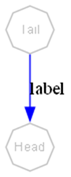 |
| 2 |  | 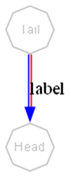 |
| 3 |  | 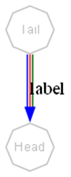 |
Edge Direction
The Graphviz dir attribute controls the arrowheads drawn on an edge.
In the Style Designer worksheet, this is managed through four toggle buttons in the Direction group that act in radio button fashion - selecting one option automatically clears the previous choice.
 |
|---|
Supported values are:
forward
- Draws an arrowhead at the target end of the edge.
- Provides Ribbon options for choosing arrowhead styles to be displayed.
- Example:
dir=forward
back
- Draws an arrowtail at the source end of the edge.
- Provides Ribbon options for choosing arrowtail styles to be displayed.
- Example:
dir=back
both
- Draws arrowheads at both ends of the edge.
- Provides Ribbon options for choosing both arrowhead (target end) and arrowtail (source end) styles to be displayed.
- Example:
dir=both
none
- Suppresses arrowheads entirely, leaving a plain line.
- Removes the arrowhead and arrowtail style options from the ribbon.
- Example:
dir=none
When you select a direction, the chosen value is displayed in the Style Designer ribbon, added to the Format String (e.g., dir=both), and shown in the preview image.
| Direction | Ribbon | Preview |
|---|---|---|
dir=none |  | 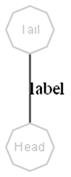 |
dir=forward | 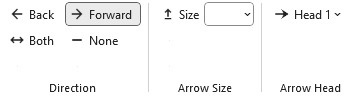 | 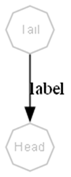 |
dir=back | 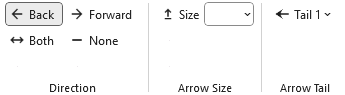 | 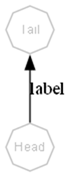 |
dir=both | 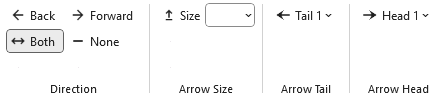 | 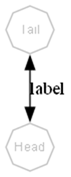 |
Arrowhead and arrowtail styles will be described in detail in a later section.
Arrow Size
The arrowsize attribute scales the size of an edge’s arrowhead or arrowtail.
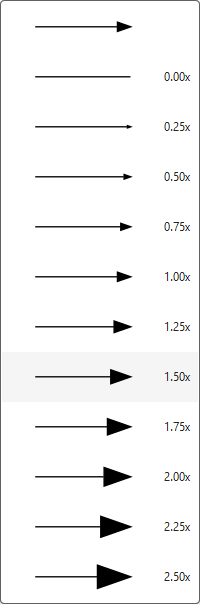
It acts as a simple multiplier applied to the base size of the selected arrow style.
Value
- A numeric scaling factor (default is
1.0). - Values greater than 1 enlarge the arrow; values less than 1 reduce it.
- Example:
arrowsize=1.5makes the arrowhead 50% larger than normal.
- A numeric scaling factor (default is
Effect on Direction
- When
dir=forward, the scaling applies to the arrowhead. - When
dir=back, the scaling applies to the arrowtail. - When
dir=both, the scaling applies to both ends. - When
dir=none, the attribute has no visible effect.
- When
The selected value is shown in the Style Designer ribbon, added to the Format String (e.g., arrowsize=0.75), and reflected in the preview image.
Arrow Heads
Arrowheads are a popular styling option for edges, and Graphviz provides a robust set of shapes to choose from.
You may stack multiple arrowhead types to create custom designs. For example:
| 1 Arrow Head | 2 Arrow Heads | 3 Arrow Heads |
|---|---|---|
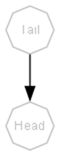 | 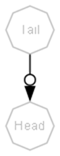 | 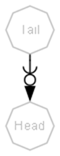 |
arrowhead="normal" | arrowhead="normalodot" | arrowhead="normalodotcurve" |
The Relationship Visualizer ribbon supports up to three stacked arrowheads:
- When you choose the first arrowhead, a second dropdown automatically appears.
- After selecting a second arrowhead, a third dropdown becomes available.
- Each dropdown represents one position in the stack, allowing you to build compound arrowhead shapes.
These selections apply to the end(s) of the edge based on the dir setting (e.g., forward, back, or both).
Arrowhead and arrowtail styles are added to the Format String (e.g., arrowhead=diamond, arrowtail="dotvee"), and the preview updates accordingly.
Each change updates the Edge Format String and renders a sample graph showing how the edge will appear based on the current Layout Engine and Splines settings on the settings worksheet.
Be aware that the visual result may vary depending on how different layout engines handle splines, head ports, and tail ports.
For more details on these settings, see the section Graph Options.
Arrow Tails
Arrowtails behave the same way as arrowheads: you may stack up to three tail shapes to create compound designs, and each selection reveals the next dropdown in the sequence. The stacked arrowtails apply to the source end of the edge whenever the direction setting (dir=back or dir=both) enables them.
With both arrowheads and arrowtails available, you can combine these glyphs in a wide variety of ways. The following gallery shows the full set of arrow shapes that Graphviz supports, which you can mix, match, and stack to create custom edge endpoints.
Arrow tails have the same set of choices as arrow heads. Like arrow heads, Relationship Visualizer allows you to choose up to 3 styles for Arrow Tails.
Arrow Glyphs
Graphviz provides a rich collection of arrowhead and arrowtail glyphs that you can use individually or stack to create custom edge endpoints. Each glyph has its own visual character—ranging from simple geometric shapes to more expressive markers—and stacking them allows you to build complex designs that convey direction, emphasis, or semantic meaning.
The following gallery shows the complete set of arrow glyphs supported by Graphviz. These shapes can be used for both arrowheads and arrowtails, and up to three may be combined in sequence to form a compound style. Use this reference to explore the available options and choose the combinations that best fit your diagram’s purpose.
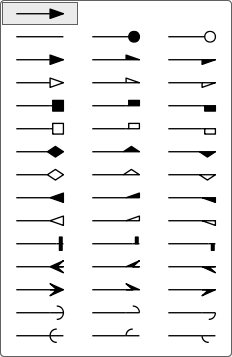
The arrowhead and arrowtail glyphs shown above use the standard Graphviz names.
From left to right, each glyph is labeled with its corresponding attribute value
| Left + Right | Left Only | Right Only |
|---|---|---|
none | dot | odot |
normal | lnormal | rnormal |
onormal | olnormal | ornormal |
box | lbox | rbox |
obox | olbox | orbox |
diamond | ldiamond | rdiamond |
odiamond | oldiamond | ordiamond |
inv | linv | rinv |
oinv | olinv | orinv |
tee | ltee | rtee |
crow | lcrow | rcrow |
vee | lvee | rvee |
curve | lcurve | rcurve |
icurve | licurve | ricurve |
Use these names when specifying arrowhead, arrowtail, or stacked combinations such as arrowhead="dotvee" or arrowtail="diamondtee".
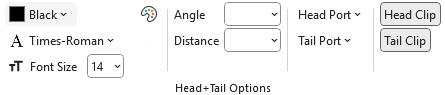
Edge Head and Tail Options
These controls provide assistance in defining the head and tail attributes for an edge.
 |
|---|
Label Font Name, Font Size, and Font Color
These attributes provide a way to differentiate the text at the end of the edges where they meet the node.
 |
|---|
Appears as:
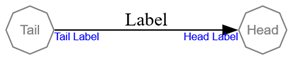
With Format string:
labelfontname="Arial" labelfontsize="8" labelfontcolor="Blue"
Label Angle
labelangle= controls the direction in which a head label or tail label appears around the point where the edge touches the node.
Imagine standing at the spot where the edge meets the node. Now imagine a line pointing straight back along the edge — that’s the starting direction (0 degrees).labelangle tells Graphviz how far to rotate from that starting direction:
- Positive numbers rotate the label to the left
- Negative numbers rotate the label to the right
By changing the angle, you choose which “side” of the node the label appears on.
For example, setting the label angle to 90 degrees:
 |
|---|
Appears as:
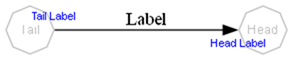
With Format String:
labelangle=90 labelfontname=Arial labelfontsize=8 labelfontcolor=Blue
Label Distance
labeldistance= controls how far away the head label or tail label appears from the point where the edge touches the node.
Instead of setting the distance directly in points, labeldistance acts as a scaling factor.
Graphviz starts from a built‑in base distance (about 10 points), and your value multiplies that distance:
- A value of 1.0 keeps the default spacing
- A value of 2.0 places the label about twice as far away
- A value of 0.5 moves it to about half the default distance
A point is a standard typographic unit: there are 72 points in one inch, so these changes adjust the label’s distance in small, predictable steps.
In short, labeldistance tells Graphviz to move the label closer or farther from the node by scaling the default distance.
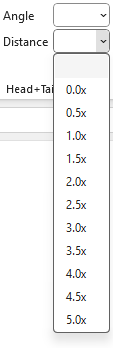 |
|---|
For example, labeldistance=3 appears as:
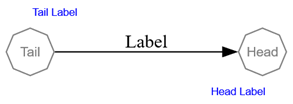
With Format String:
labelangle=90 labeldistance=3 labelfontname=Arial labelfontsize=8 labelfontcolor=Blue
Label Angle & Label Distance
Used together, labelangle and labeldistance let you control both where a label appears around the node and how far out it sits. labelangle chooses the direction—left, right, above, below, or anywhere in between—while labeldistance scales the default spacing to move the label closer or farther away. Adjusting both gives you precise, intuitive control over label placement at the point where the edge meets the node.
This example depicts when labelangle= and labeldistance= attributes are used together.
 |
|---|
Appears as:
With Format String:
labelangle=90 labeldistance=3 labelfontname=Arial labelfontsize=8 labelfontcolor=Blue
Head Port
Indicates where on the head node to attach the head of the edge. In the default case, the edge is aimed towards the center of the node, and then clipped at the node boundary.
If a compass point is used, it must be one of the following: n, ne, e, se, s, sw, w, nw, c, or _. A compass point adjusts the edge’s attachment point so that it aims for the specified location on the port—or, if no port name is provided, on the node itself. The compass point c targets the center of the node or port. The compass point _ instructs Graphviz to choose the side of the port that lies on the exterior of the node; if no such side exists, the center is used instead. When a port name is supplied without a compass point, the default value is _.
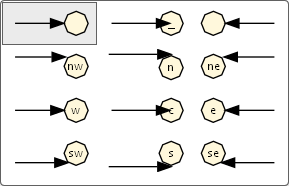
Appears As:
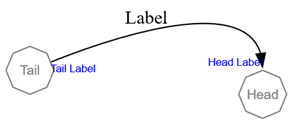
With Format String:
labelfontname=Arial labelfontsize=8 labelfontcolor=Blue headport=n
Tail Port
Indicates where on the tail node to attach the tail of the edge.
If a compass point is used, it must be one of the following: n, ne, e, se, s, sw, w, nw, c, or _. A compass point modifies edge placement so that the edge aims for the specified point on the port—or, if no port name is supplied, on the node itself. The compass point c targets the center of the node or port. The compass point _ indicates that Graphviz should choose the side of the port that lies on the exterior of the node; if no such side exists, the center is used instead. When a port name is provided without a compass point, the default compass point is _.
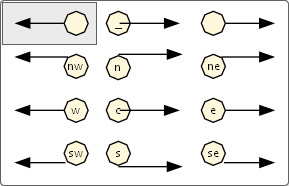
Appears as:
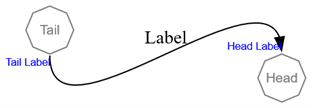
With Format String:
labelfontname=Arial labelfontsize=8 labelfontcolor=Blue headport=n tailport=s
Clipping Behavior
Graphviz uses clipping to decide how far an edge (its spline and arrowhead) runs into a node. The attributes headclip and tailclip control this behavior independently for the head and tail ends of an edge. These settings affect the edge and arrowhead, not the label text itself.
Head Clip
headclip= controls how the edge is clipped at the head node.
- When
headclip=true(the default), Graphviz clips the spline at the boundary of the head node. The arrowhead sits at the edge of the node shape, rather than running into the center. - When
headclip=false, the edge is not clipped to the node boundary. The spline and arrowhead may extend into the interior of the node, often aiming at its center.
| Buttons | Preview |
|---|---|
 | 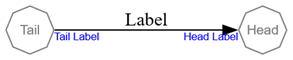 |
| Edge head is clipped at the node | |
 | 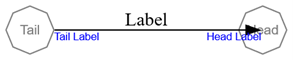 |
| Edge head is not clipped at the node |
Tail Clip
tailclip= controls how the edge is clipped at the tail node.
- When
tailclip=true(the default), Graphviz clips the spline at the boundary of the tail node. The edge meets the node at its outline. - When
tailclip=false, the spline is allowed to extend into the node, so the edge may appear to start from a point inside the node.
| Buttons | Preview |
|---|---|
| |
| Edge tail is clipped at the node | |
 | 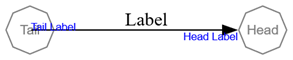 |
| Edge tail is not clipped at the node |
Clusters
Clusters can have styles just as nodes and edges do.
To create a cluster style definition in the Style Designer worksheet:
Change the Design Mode Element to Cluster.
- This switches the ribbon controls to attributes appropriate for clusters (e.g.,
Labels,Borders,Fill,arrowhead). - Node‑specific attributes such as
shapewill no longer be available. - Edge‑specific attributes such as
arrowhead,arrowtailwill no longer be available.
- This switches the ribbon controls to attributes appropriate for clusters (e.g.,
Press the Reset button.
- This clears all style values carried over from node definitions.
- Starting from a clean slate ensures that only edge‑specific attributes are applied.
Use the ribbon, preview image, and format string just as you did for nodes and edges.
- The selected attributes are displayed in the ribbon.
- The Format String is updated with edge attributes (e.g.,
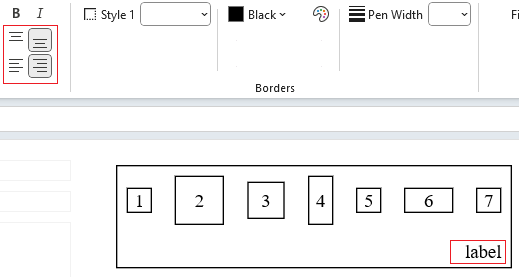
color=blue, style=dashed). - The preview image shows exactly how Graphviz will render the cluster. There are seven shapes of various sizes to simulate how a cluster might be used.
The style designer worksheet appearance changes to look as follows:
Color Scheme
The cluster can specify a color scheme. Note that since clusters are subgraphs, you should use care in specifying a color scheme as nodes can inherit this specification.
Labels
Font color, name, and size are specified for the cluster label the same way they are specified for nodes and edges. See Labels above for more information.
Label Alignment
Nodes allow you to left‑justify, center, or right‑justify their labels. Clusters extend this by also allowing top or bottom alignment. These options are additive, so you can combine them to specify positions such as bottom right, top left, or top center.
The following example shows the alignment buttons set to place the cluster label in the bottom right of the cluster:
 |
|---|
Borders
Border styles, colors, and pen widths for a cluster’s rectangle are defined the same way they are for nodes. This means you can use the same attributes—such as color, penwidth, and style—to control how the cluster’s outline looks. The cluster simply draws a rectangular boundary around its contents, and these attributes determine how that boundary is rendered. For more details on available options, see Borders above.
Fill Colors
Fill colors and gradient fills for a cluster’s rectangle are defined the same way they are for nodes. You can use the same attributes—such as fillcolor, color, and style=filled or gradient specifications—to control how the cluster’s background is rendered. The cluster simply applies these settings to its rectangular boundary. For details on available options, see Fill Color above.
Packing Options
If the layout on the Graphviz ribbon tab is set to the osage layout, an additional Packing group of controls will appear, as shown in the example below:
 |
|---|
These controls let you adjust how nodes within clusters, or clusters within clusters are arranged relative to one another in the final layout.
Two options are provided:
Margin - Using the
packattribute, sets the amount of empty space between packed clusters. Values from 1/8" to 1" are available, in increments of 1/8". Larger margins spread clusters farther apart; smaller margins bring them closer together. Distances are converted from inches to points automatically.Packmode - Determines the strategy Graphviz uses when arranging clusters. Different modes influence whether clusters are packed tightly, aligned in rows or columns, or arranged using more geometric rules. The available modes are:
- clust - Packs clusters based on their natural cluster structure, keeping related groups visually close.
- array - Packs clusters into a grid‑like arrangement.
When array is selected, the Packing group expands to provide additional controls, as shown below:
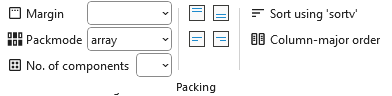
Additional choices include:
- No. of components - How many components (nodes or clusters) to place before starting a new row or column.
- Node alignment - How nodes should be aligned within each cluster:
- Top (
packmode=array_t) - Middle (
packmode=array) - Bottom (
packmode=array_b) - Left (
packmode=array_l) - Right (
packmode=array_r).
- Top (
- Sort using
sortv(packmode=array_u) - Sorts components based on theirsortvattribute. - Column‑major order (
packmode=array_c) - Lays out components column‑by‑column instead of row‑by‑row.
packmodearray flags can be combined to apply multiple effects at once. For example, the selections shown below: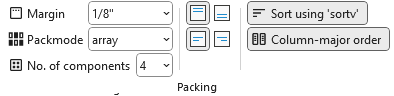
produce the Format String
pack=9 packmode=array_ctlu4which breaks down as follows:pack=9- Sets the margin around the nodes to 1/8".packmode=array_ctlu4- Applies several array‑mode flags at once:u- Sort components by theirsortvattribute.c- Use column‑major order.l- Align nodes along the left edge within each column.t- Align nodes along the top edge within each row.4- Each column can contain 4 node or cluster objects (this example shows nodes).
Together, these flags sort the nodes, arrange them column‑by‑column with four rows per column, and align them to the top and left within the grid.
The preview of the cluster appears as:
pack=9 packmode=array_ctlu4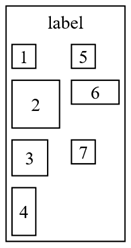
Here are additional examples:
packmode=clustpackmode=array_2packmode=array_c2packmode=array_cu2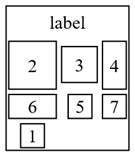
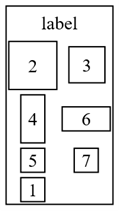
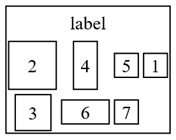
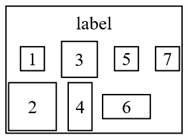
Best fit distribution 2 Columns in row major order 2 Rows in column major order 2 Rows in column major order, sorted